Hypervue for unreal
documentation & guide
user interface
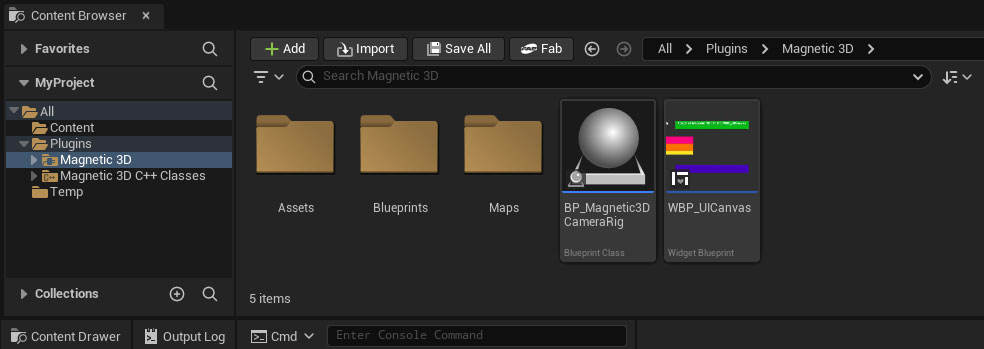
1. Find WBP_UICanvas Widget Blueprint
In the Content Browser, navigate to the Magnetic 3D folder to find the WBP_UICanvas widget blueprint.
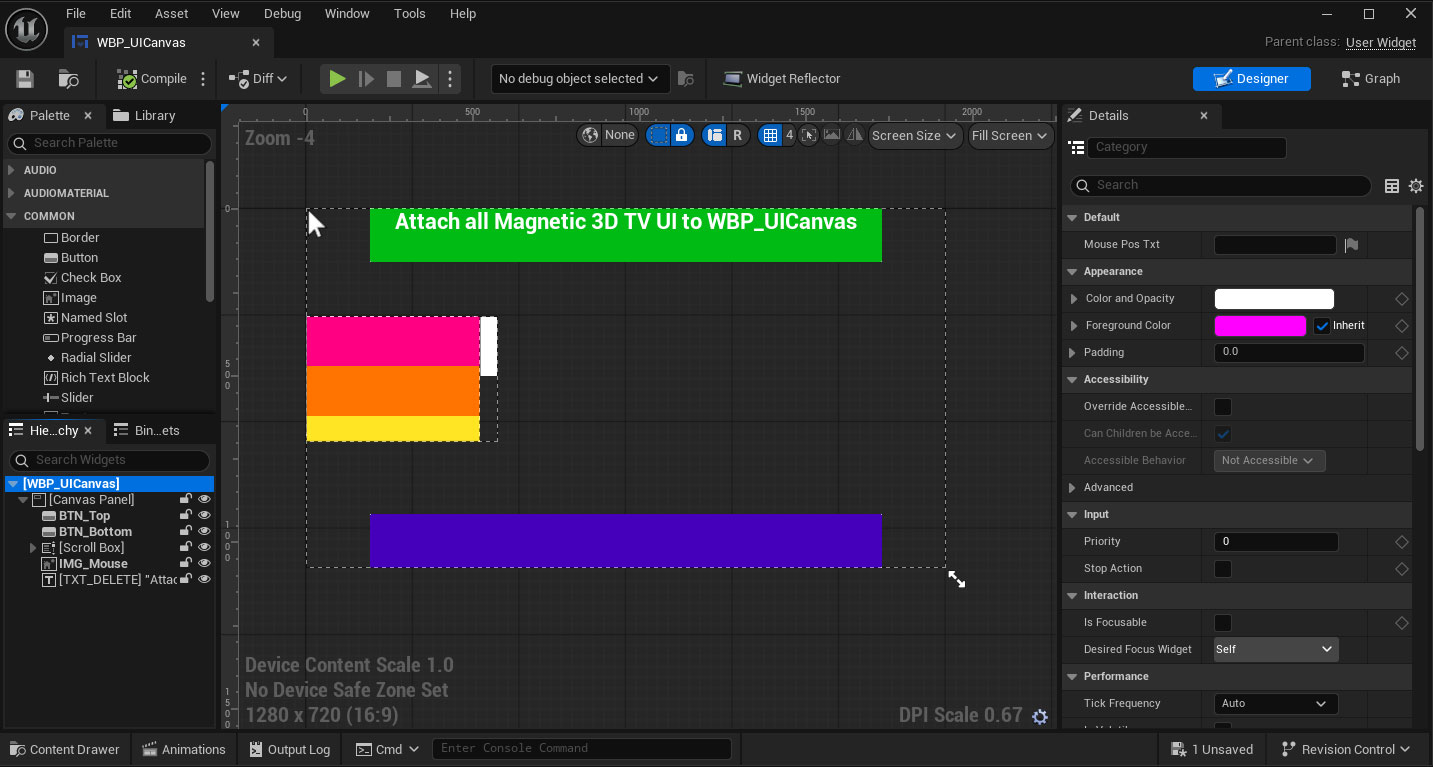
2. Open the Widget Blueprint
Open the Widget Blueprint to view and edit your UI widgets.
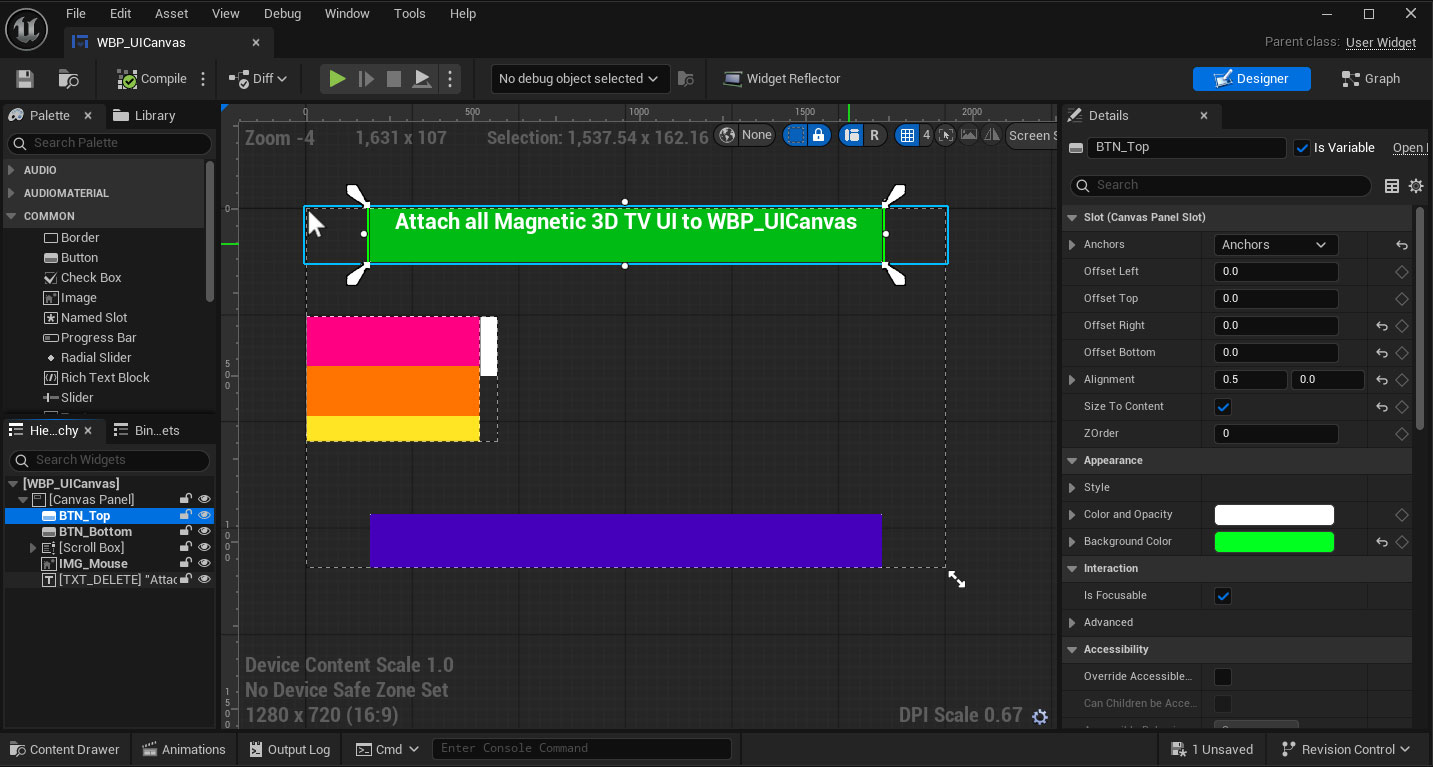
3. Add or Remove Widgets
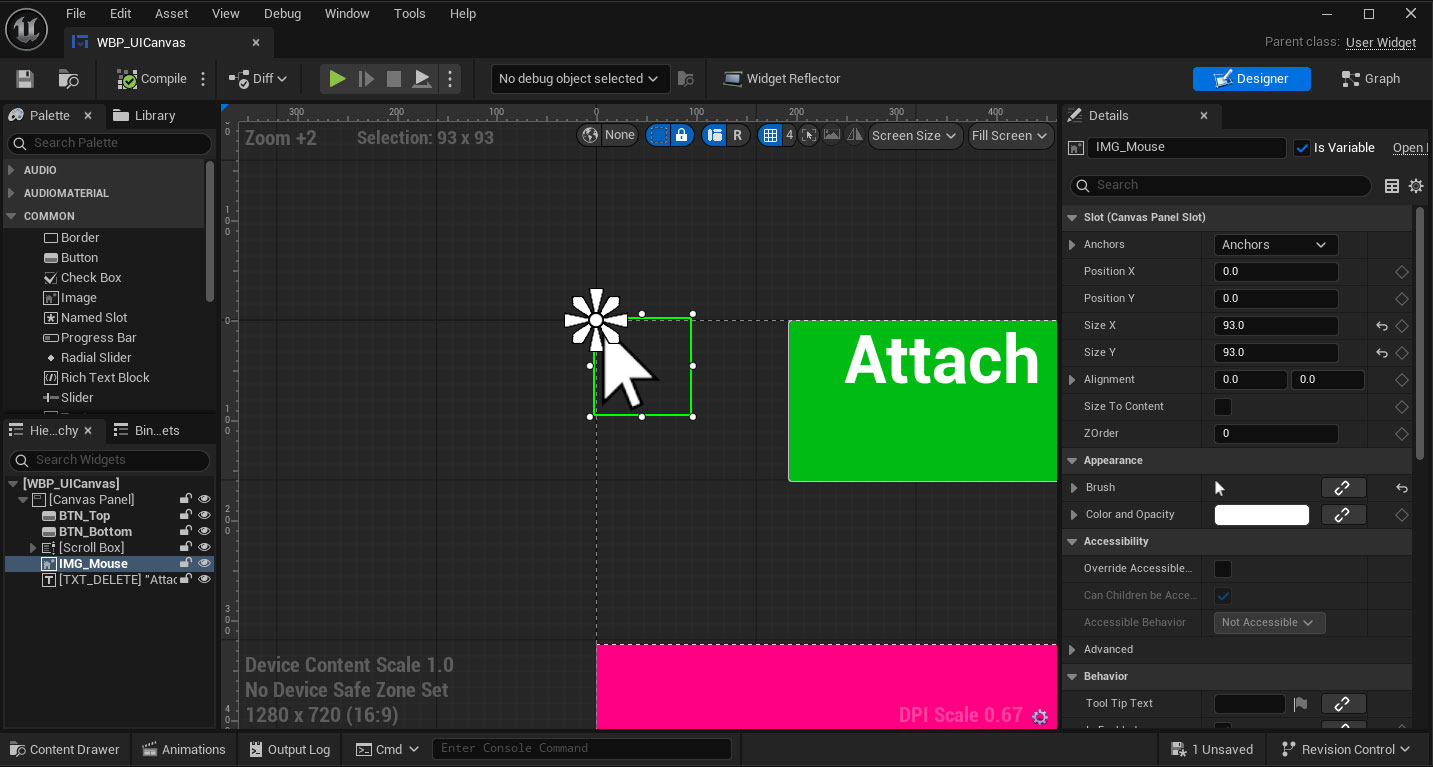
In the Hierarchy, you can add or remove widgets under the WBP_UICanvas. These will display properly with the 3D Camera Types.
4. M3D Mouse
The IMG_Mouse widget in the Hierarchy will emulate mouse interactions with the other widgets.
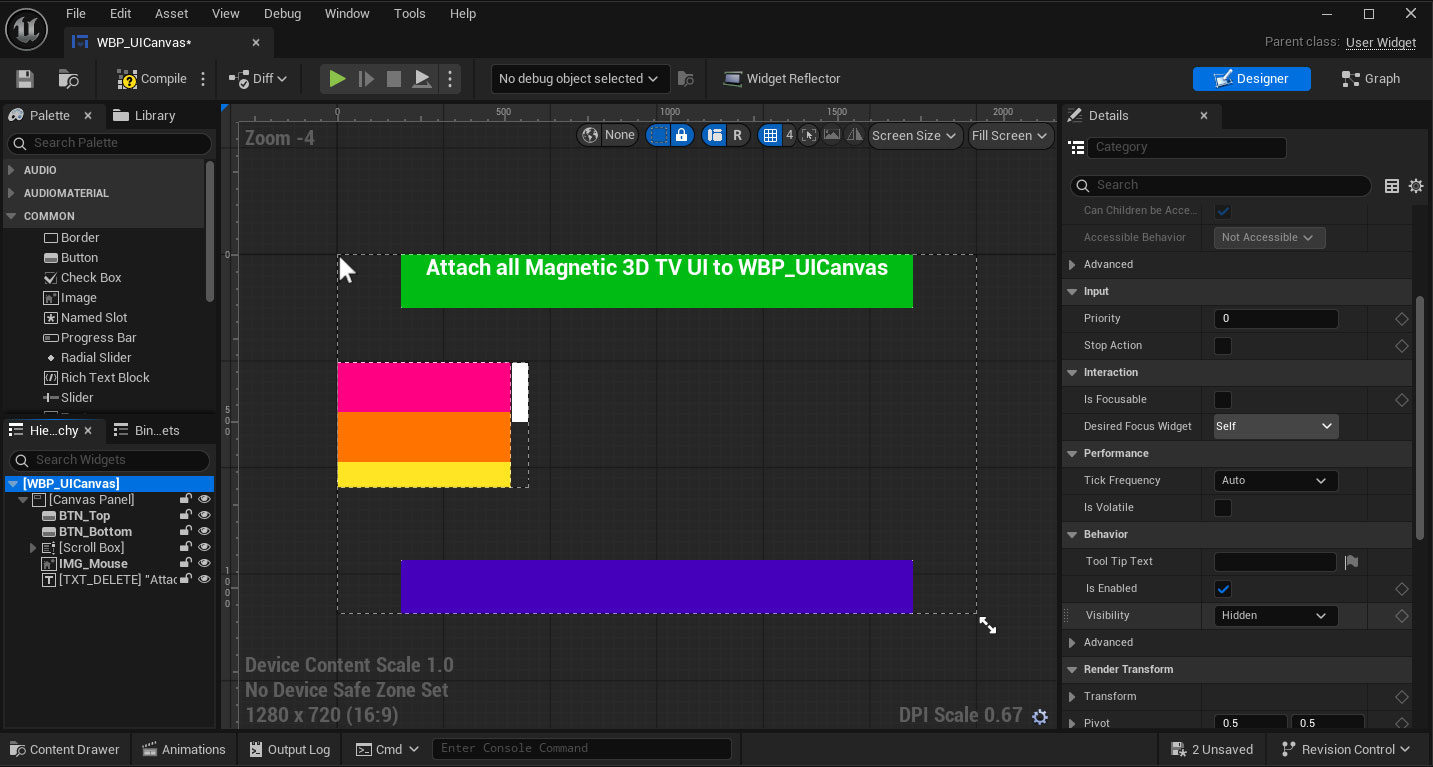
5. UI Visibility
You can hide the UI widget by selecting WBP_UICanvas and changing the Visibility to Hidden in the Details panel.