hypervue for unreal
documentation & guide
installation
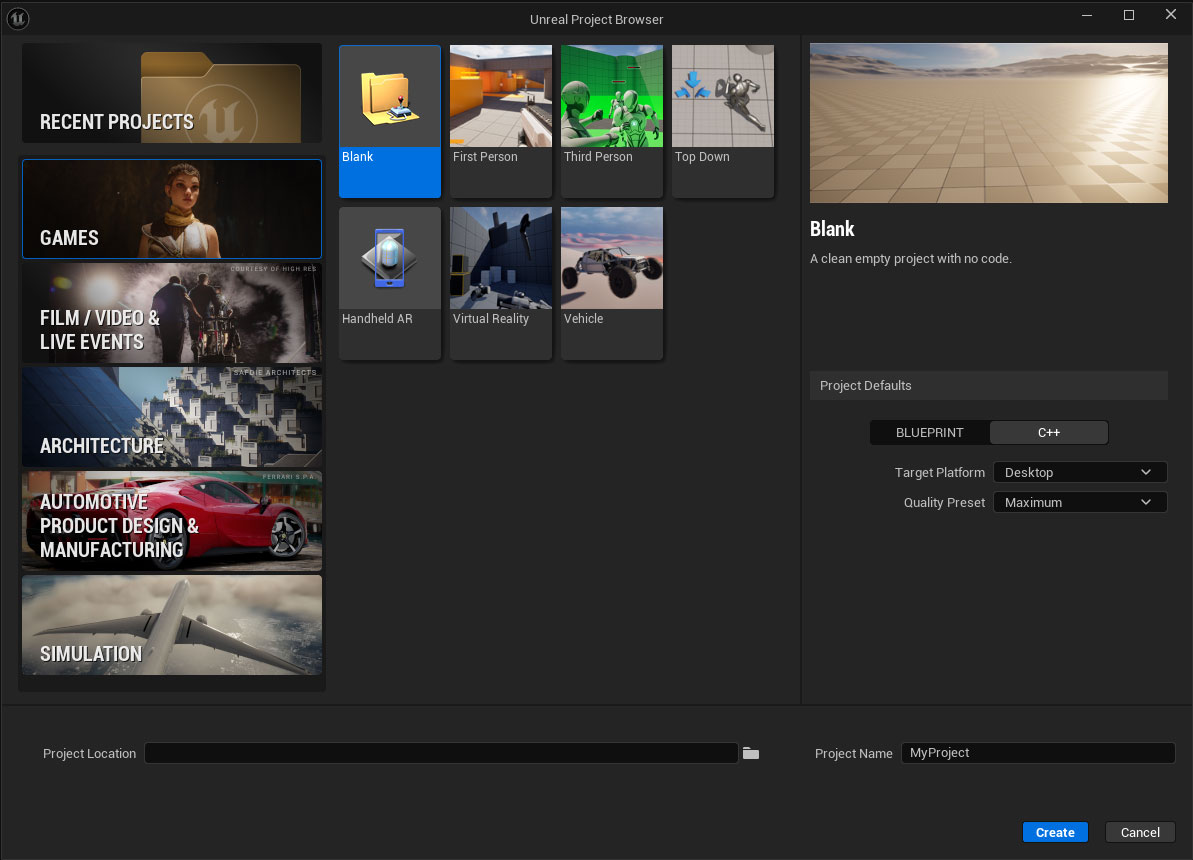
1. Create C++ Project in Unreal (5.6.1)
If you don’t already have an exiting C++ Project, create one. (Must be in Unreal 5.6.1)
2. Create Plugins Folder
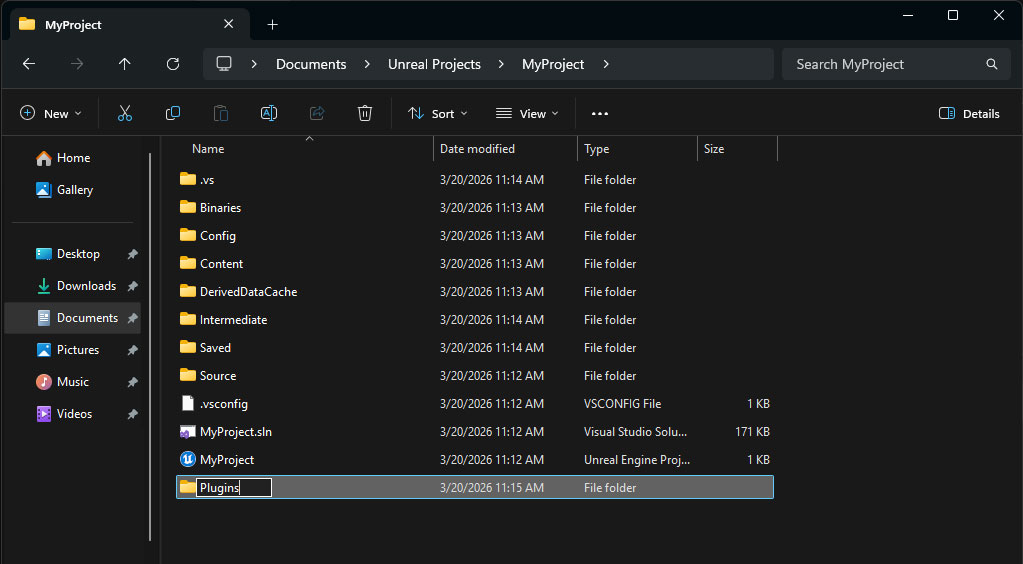
Close Unreal, and locate your Project folder. Then create a folder named “Plugins” if one does not exist in the directory.
3. Add Magnetic 3D Plugin to Plugins Folder
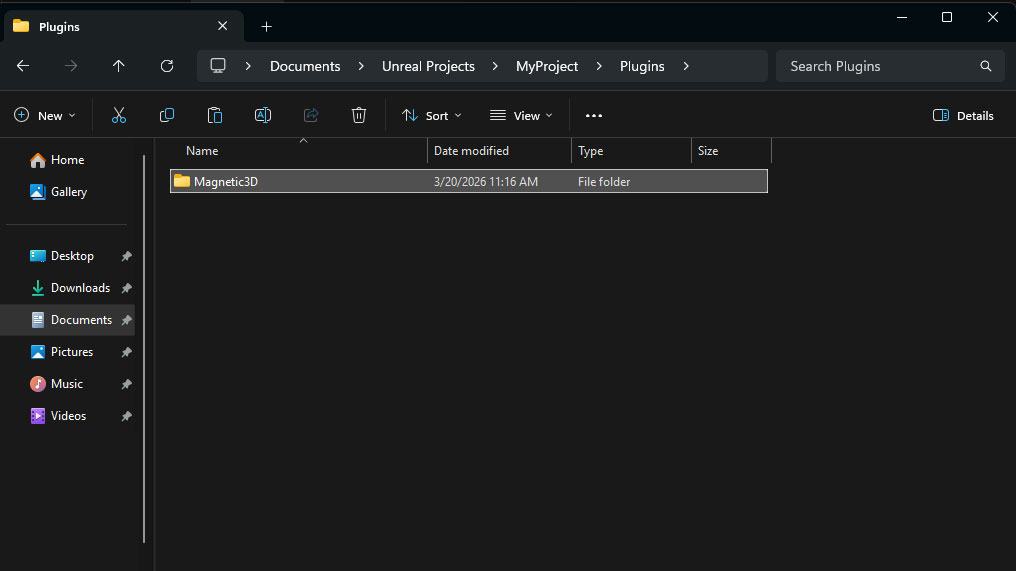
Unzip the Magnetic 3D Unreal Plugin zip file, and locate the Magnetic 3D folder within it. Copy that entire folder into the Plugins folder in your Unreal project directory.
4. Enable Plugin Visibility
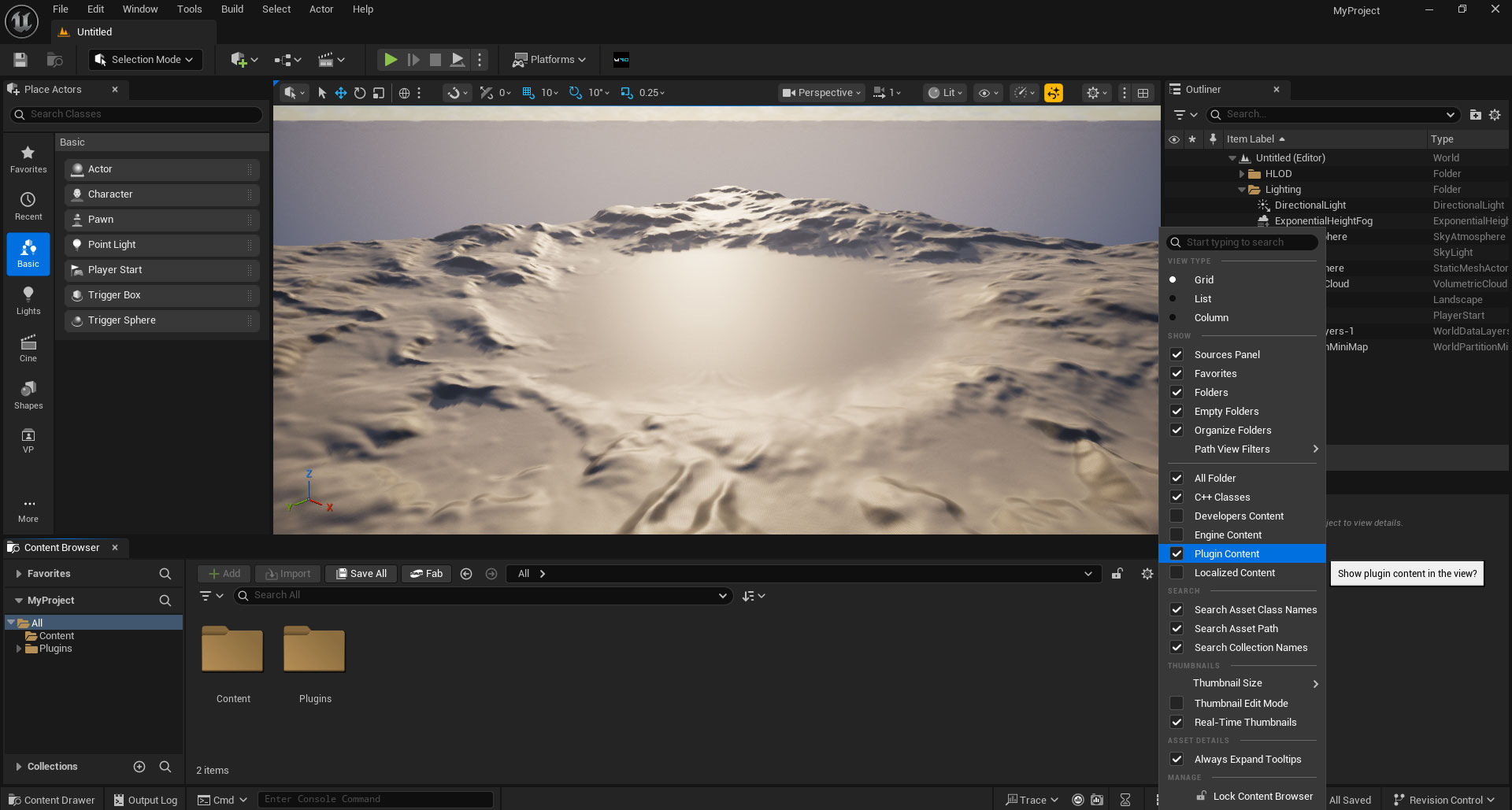
Open your Unreal project and find the Gear icon in the Content Browser window. Make sure Plugin Content is enabled.
5. Finish
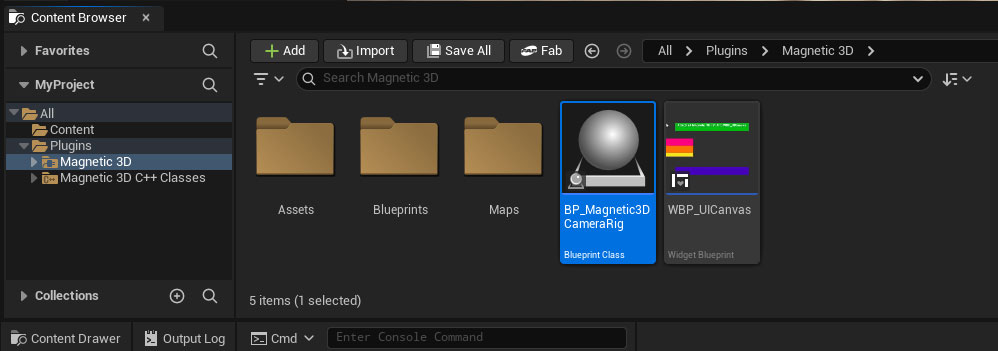
You should now see the Magnetic 3D folder inside of the Plugins folder in the Content Browser.