Hypervue for unity
documentation & guide
license and assets
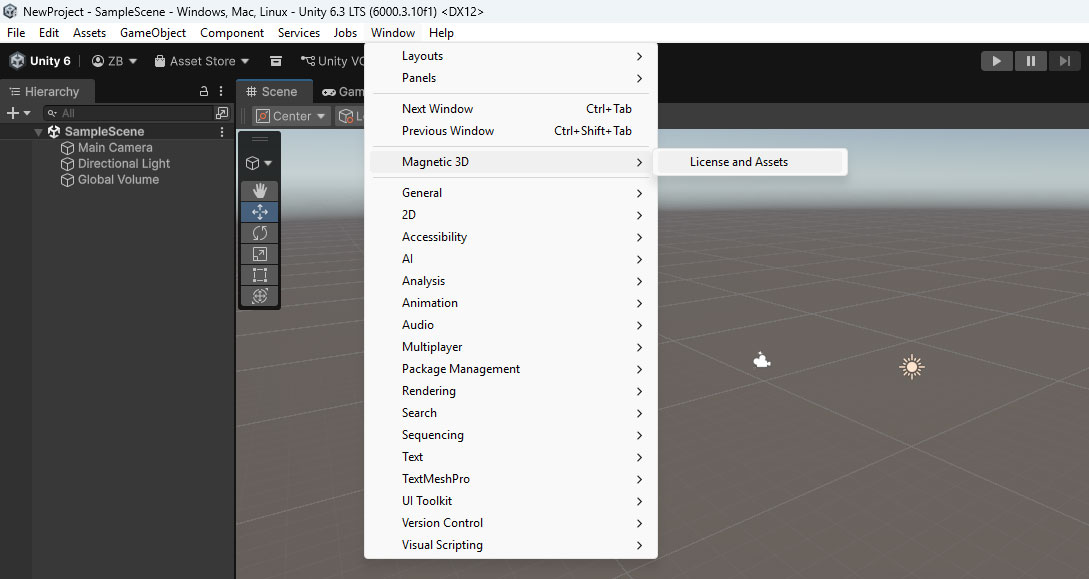
1. Open License and Assets Menu
Go to Window -> Magnetic 3D -> License and Assets to open the License menu.
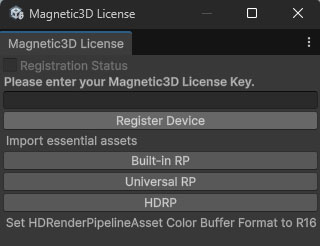
2. Enter License Key
Enter your License Key and click Register Device to activate the plugin.
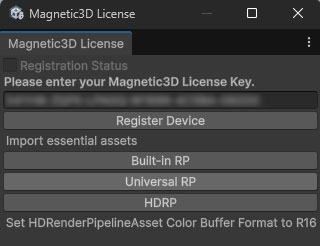
3. Import Essential Assets
Under the Import essential assets section, click on the Render Pipeline you are currently using to import all essential assets.
4. Finish
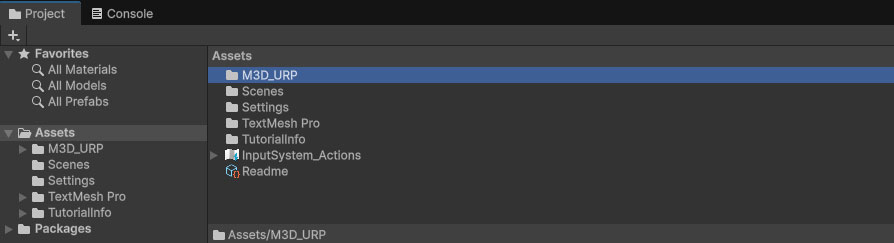
A new folder should now be imported into your Assets folder in the Project window. You can now close the License and Assets menu.