
Hypervue for unity
documentation & guide
magnetic 3d camera rig
1. Inspect Magnetic 3D Camera Rig
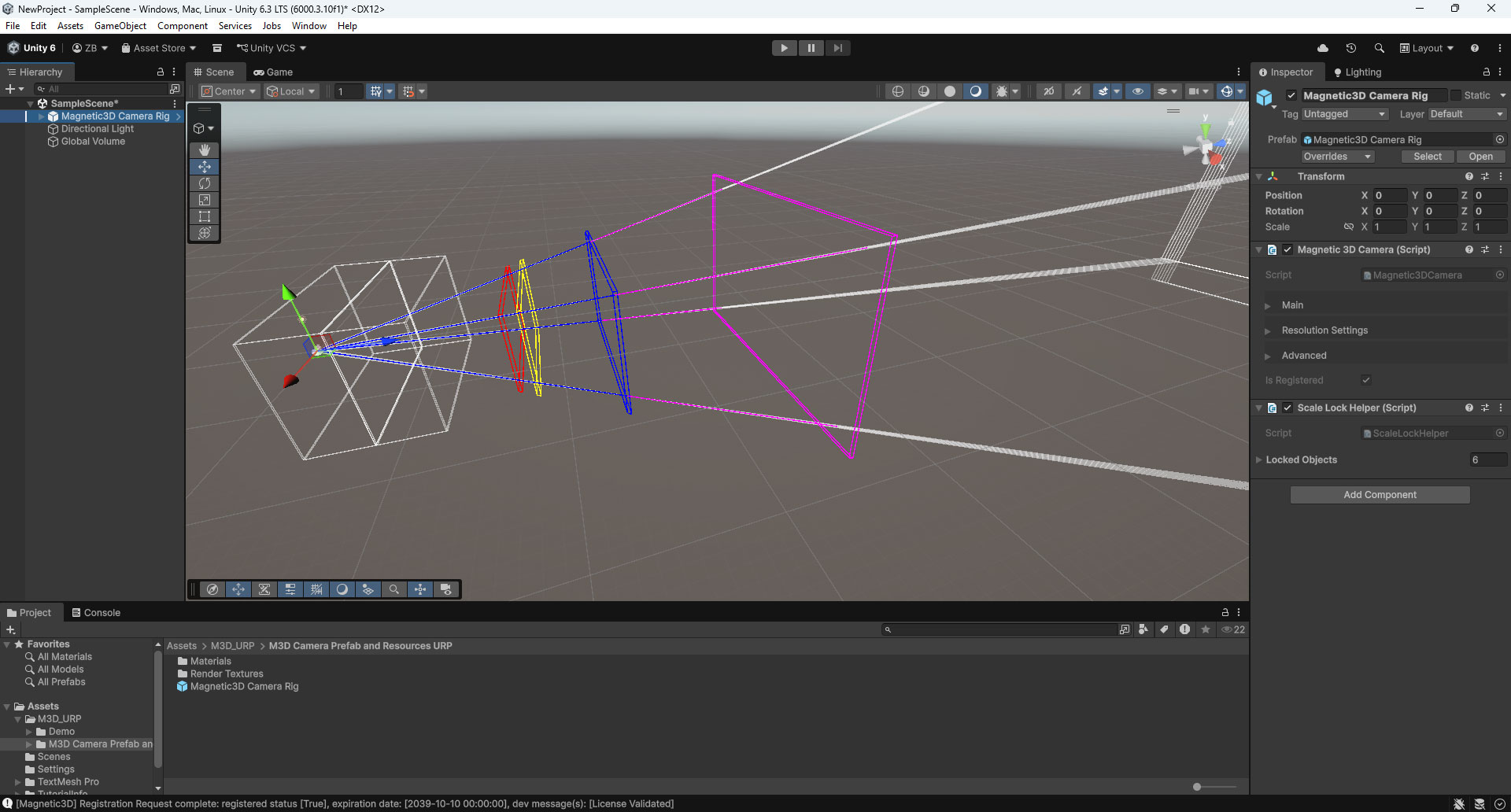
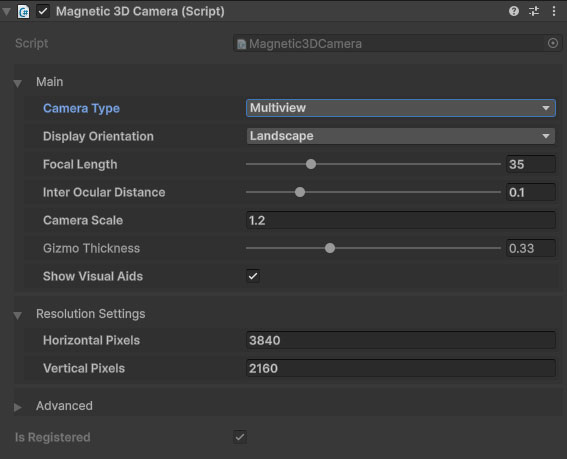
Click on the Magnetic3D Camera Rig prefab in your scene Hierarchy to view it in the Inspector window. Expand the Main section in the Magnetic 3D Camera script component.
2. Camera Type
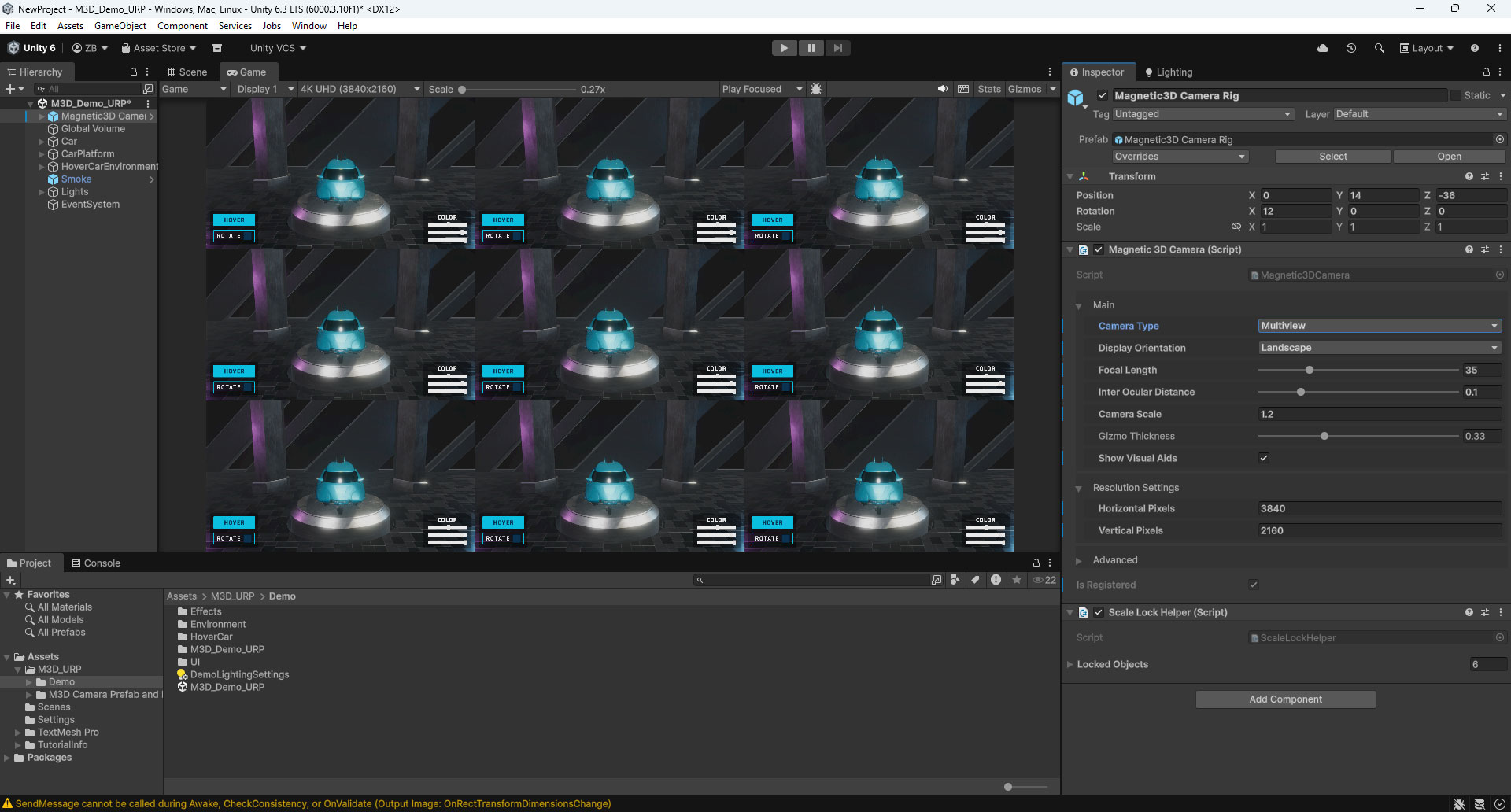
Multiview: Displays a 9-tile grid of views. Use this with the Multiview setting on Magnetic 3D Wildfire displays.
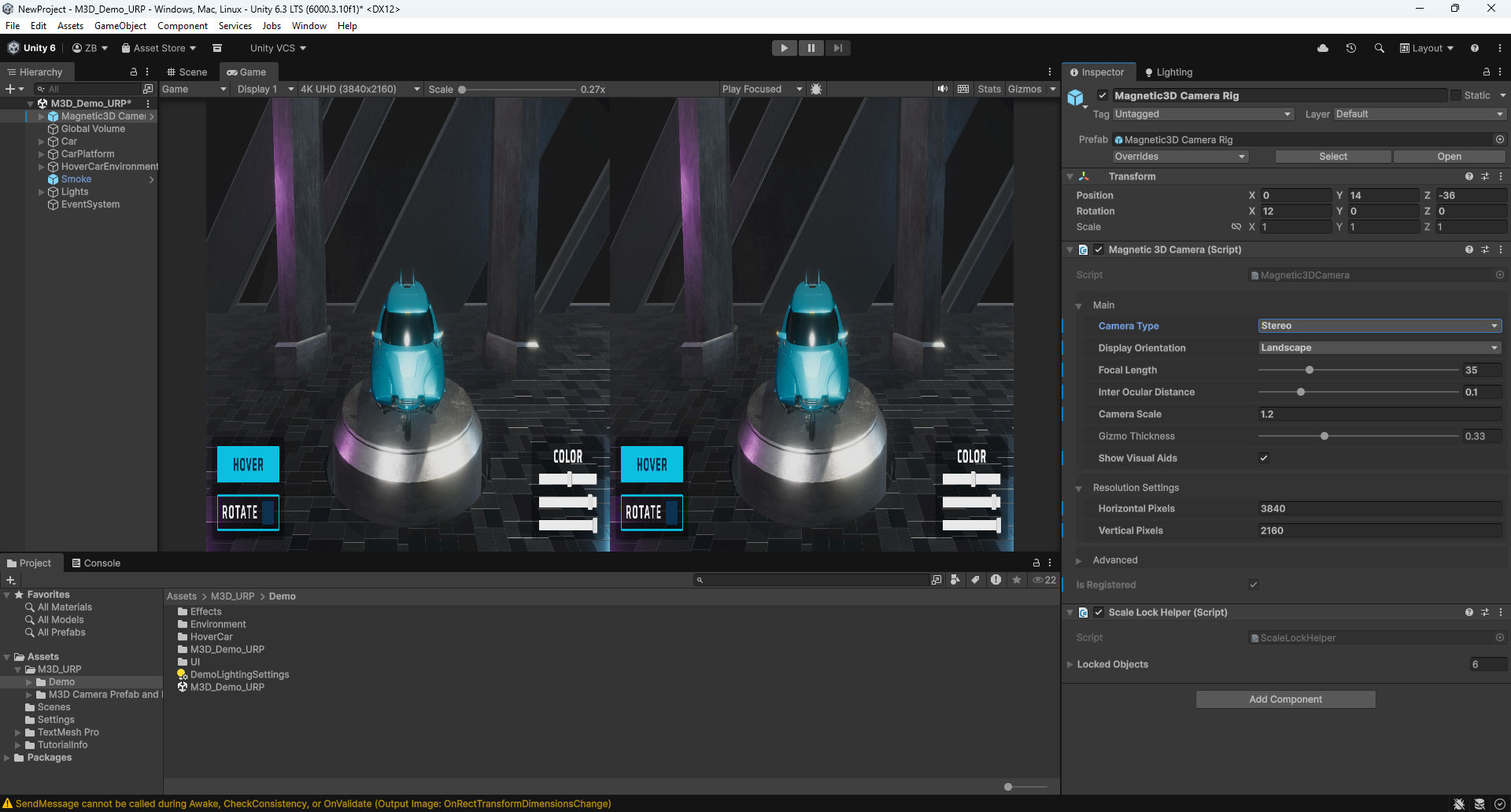
Stereo: Displays a 2-view side-by-side view that is squashed horizontally. Use this with the Stereo setting on Wildfire displays or on Emersa displays with 3D enabled.
Mono: Displays a single 2D view. Use this with the 2D setting on Wildfire displays or with 3D disabled on Emersa displays. Also useful for testing on 2D monitors.
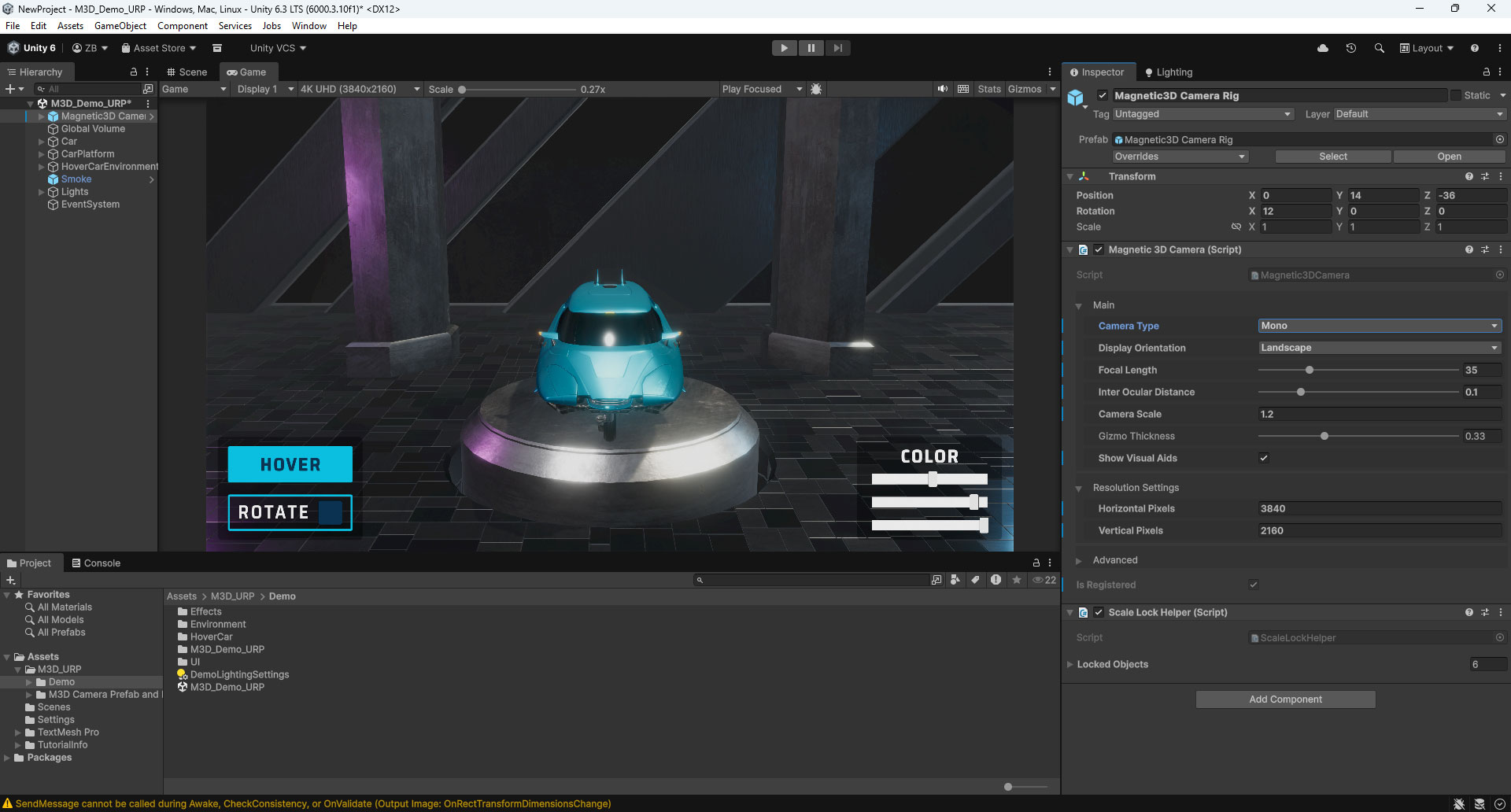
* Stereo and Mono settings only work if Display Orientation is set to Landscape.
3. Display Orientation
Landscape: Standard horizontal layout. Used on all landscape Wildfire and Emersa displays.
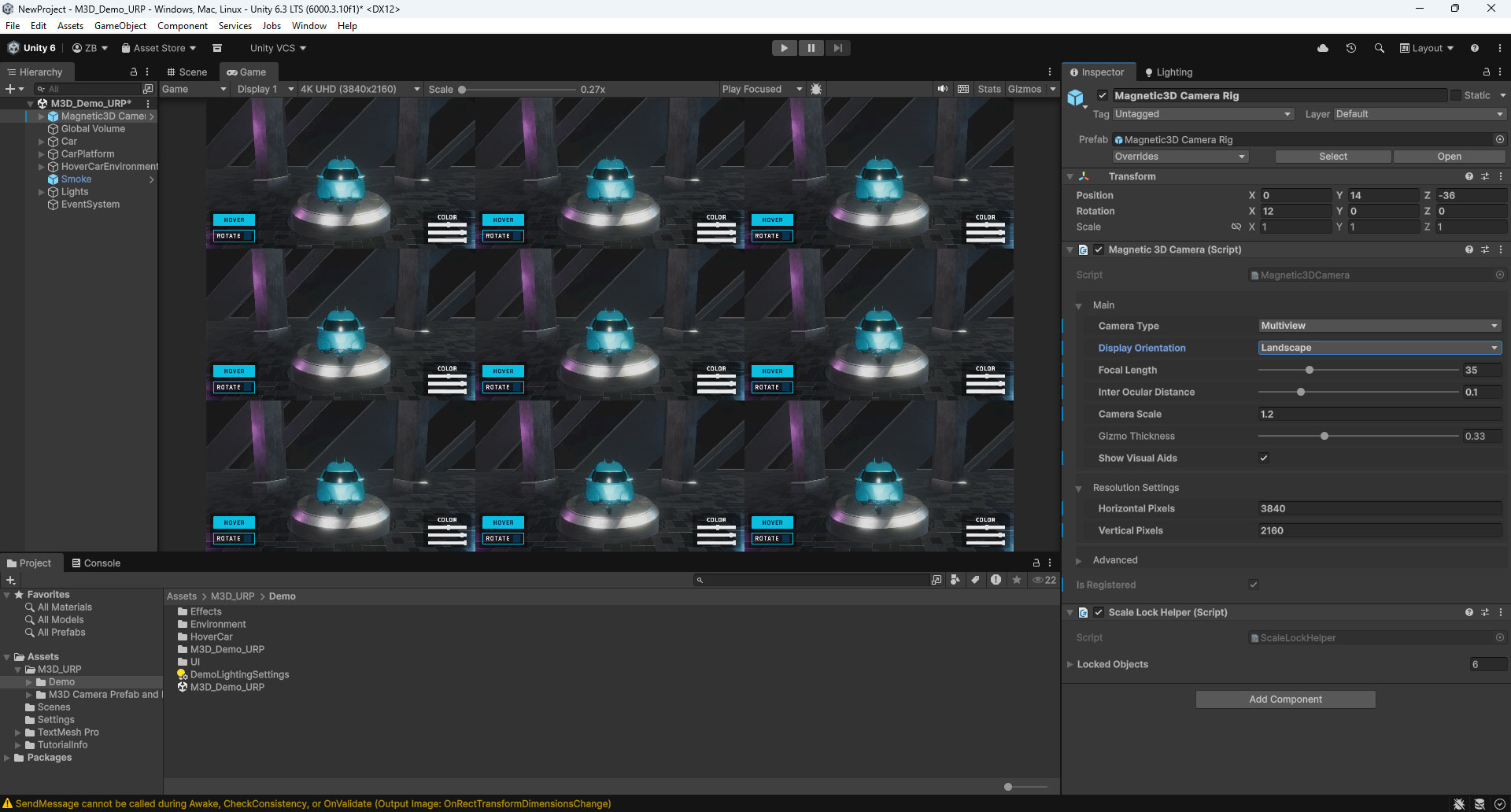
Portrait: Vertical layout. Used on portrait Wildfire displays.
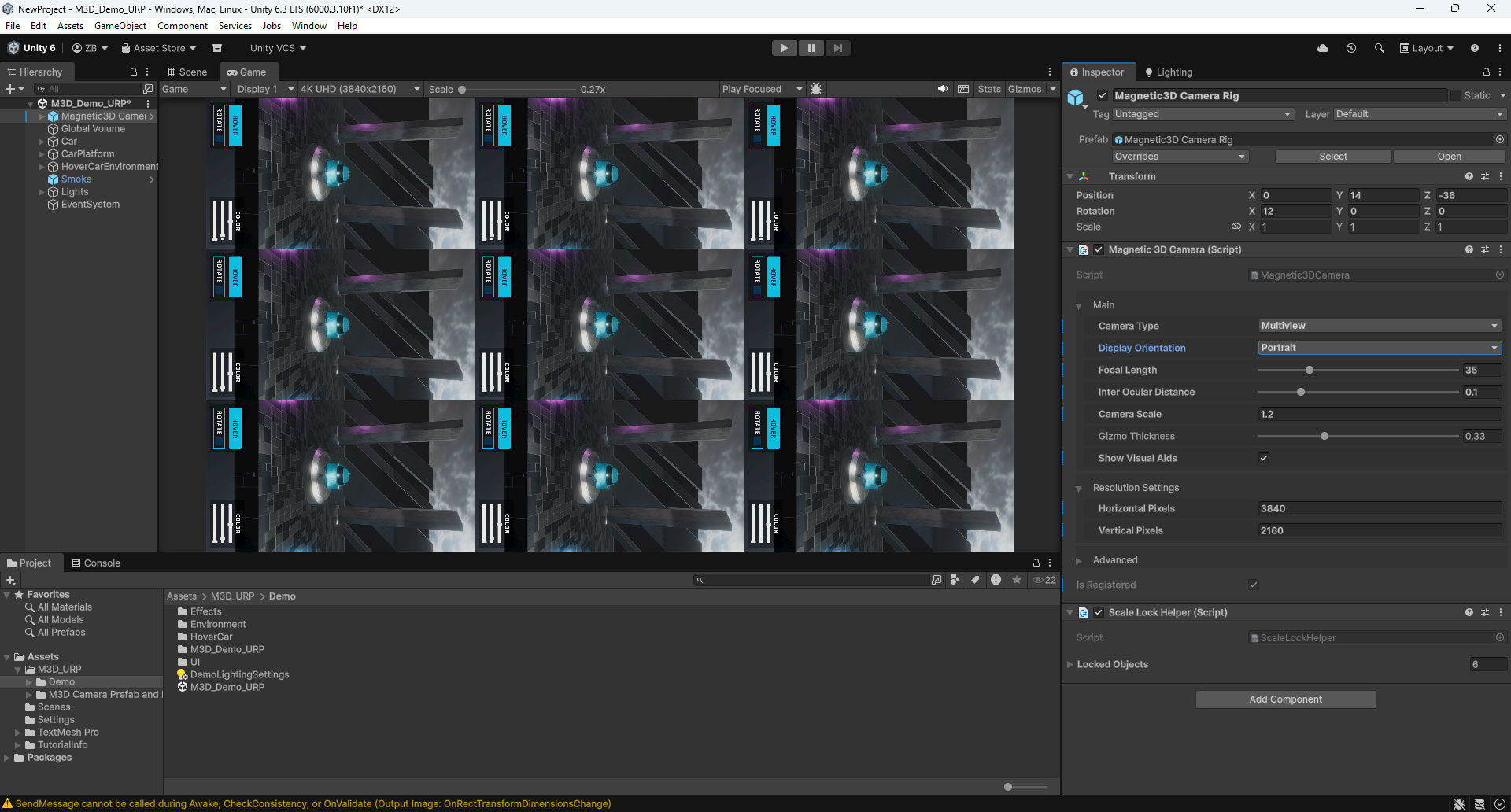
* Portrait orientation is only compatible in Multiview Camera Type. The views will appear rotated 90 degrees on their side in the 9-tile grid.
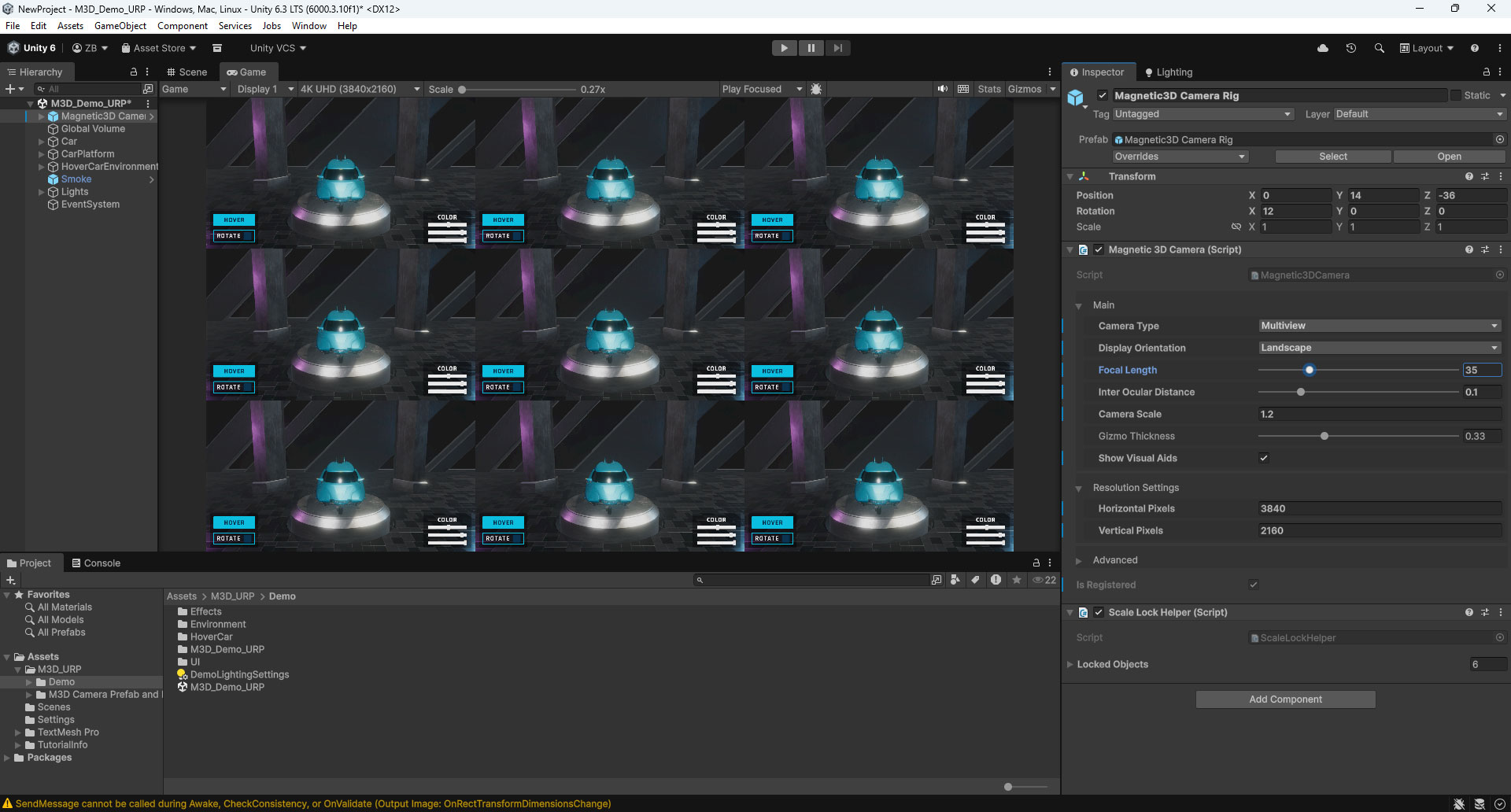
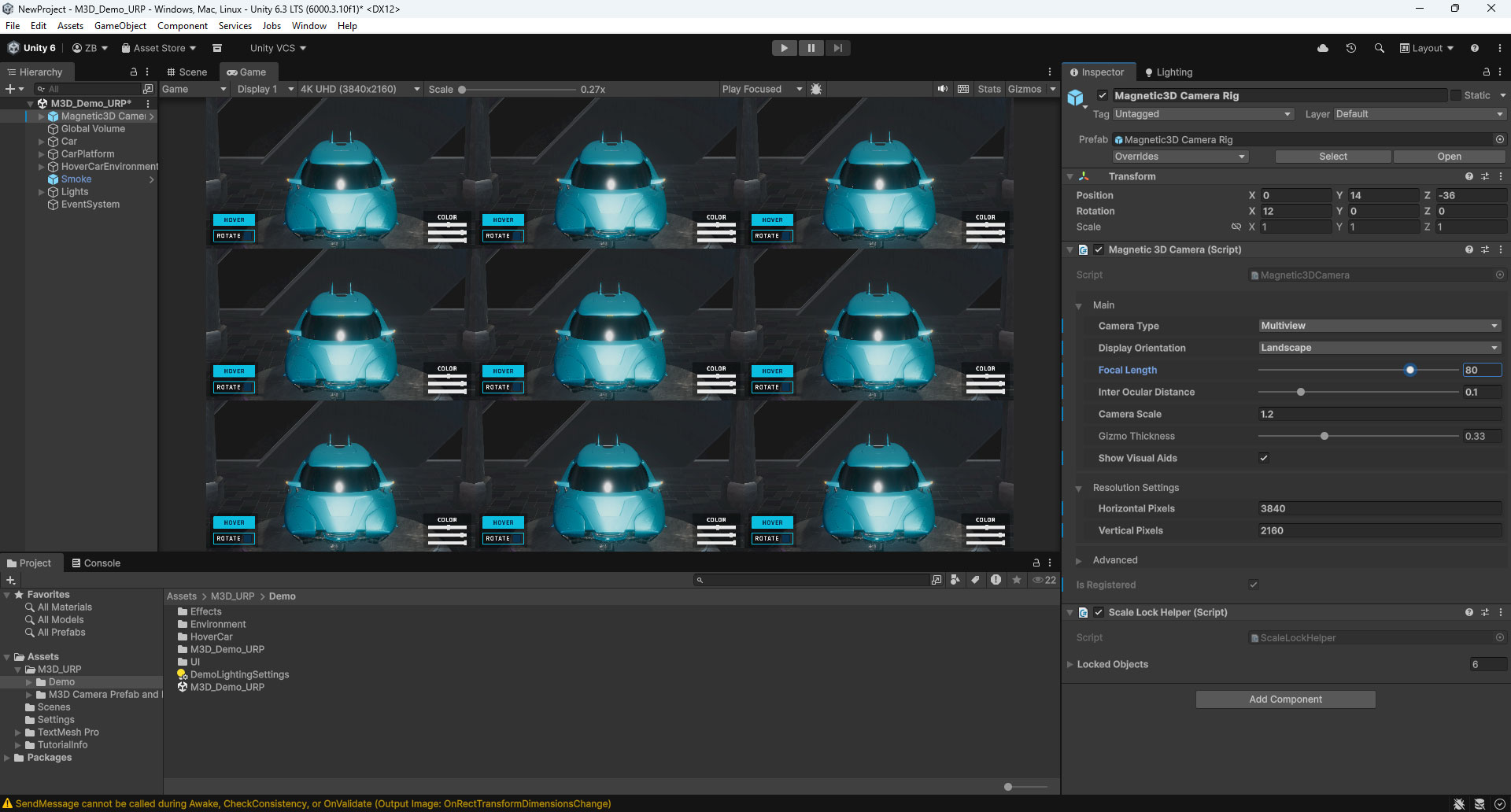
4. Focal Length
Changes the focal length of all cameras in the rig. This will affect how objects appear in the camera view, and the Visual Guides will adjust accordingly.
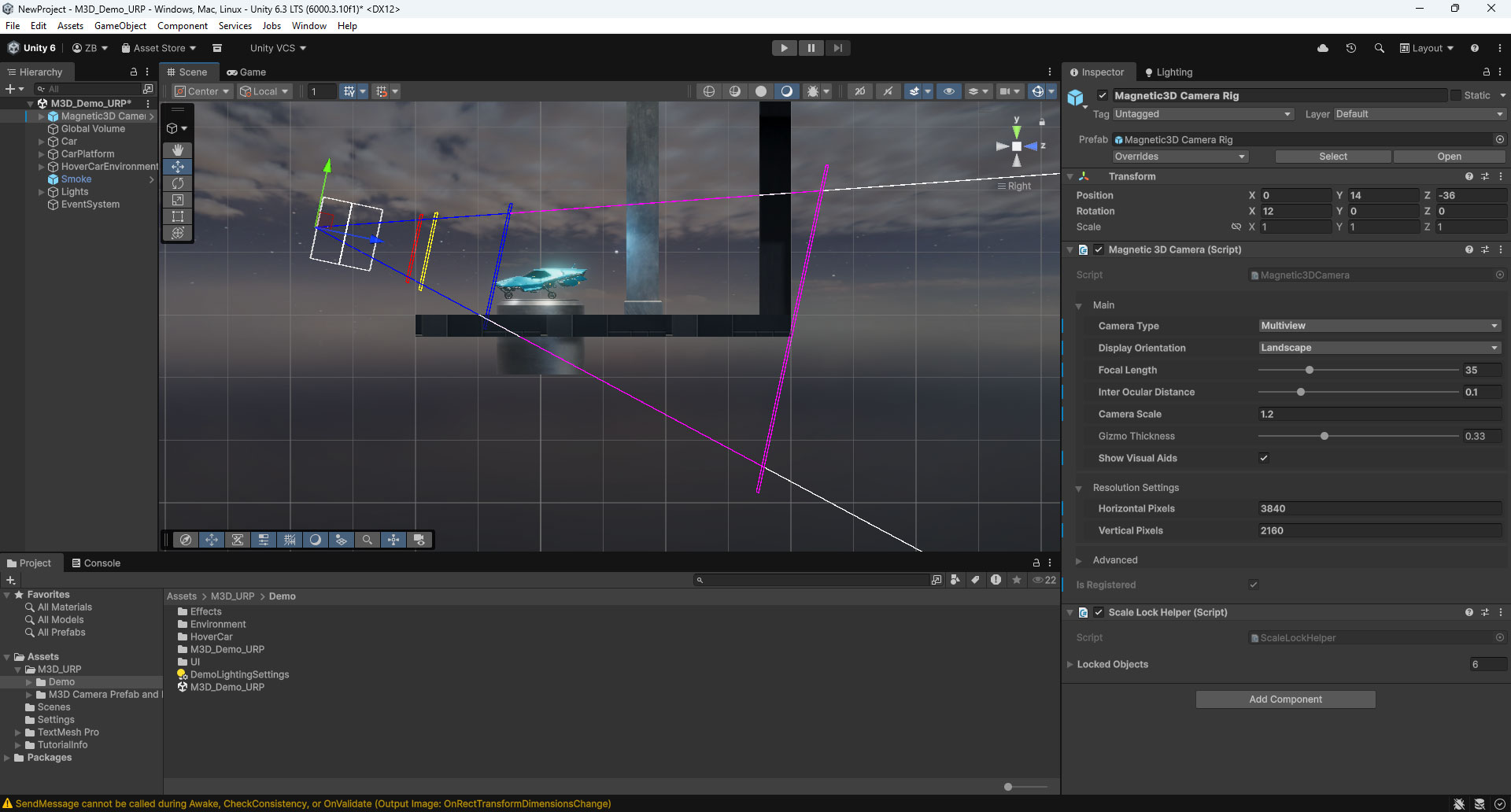
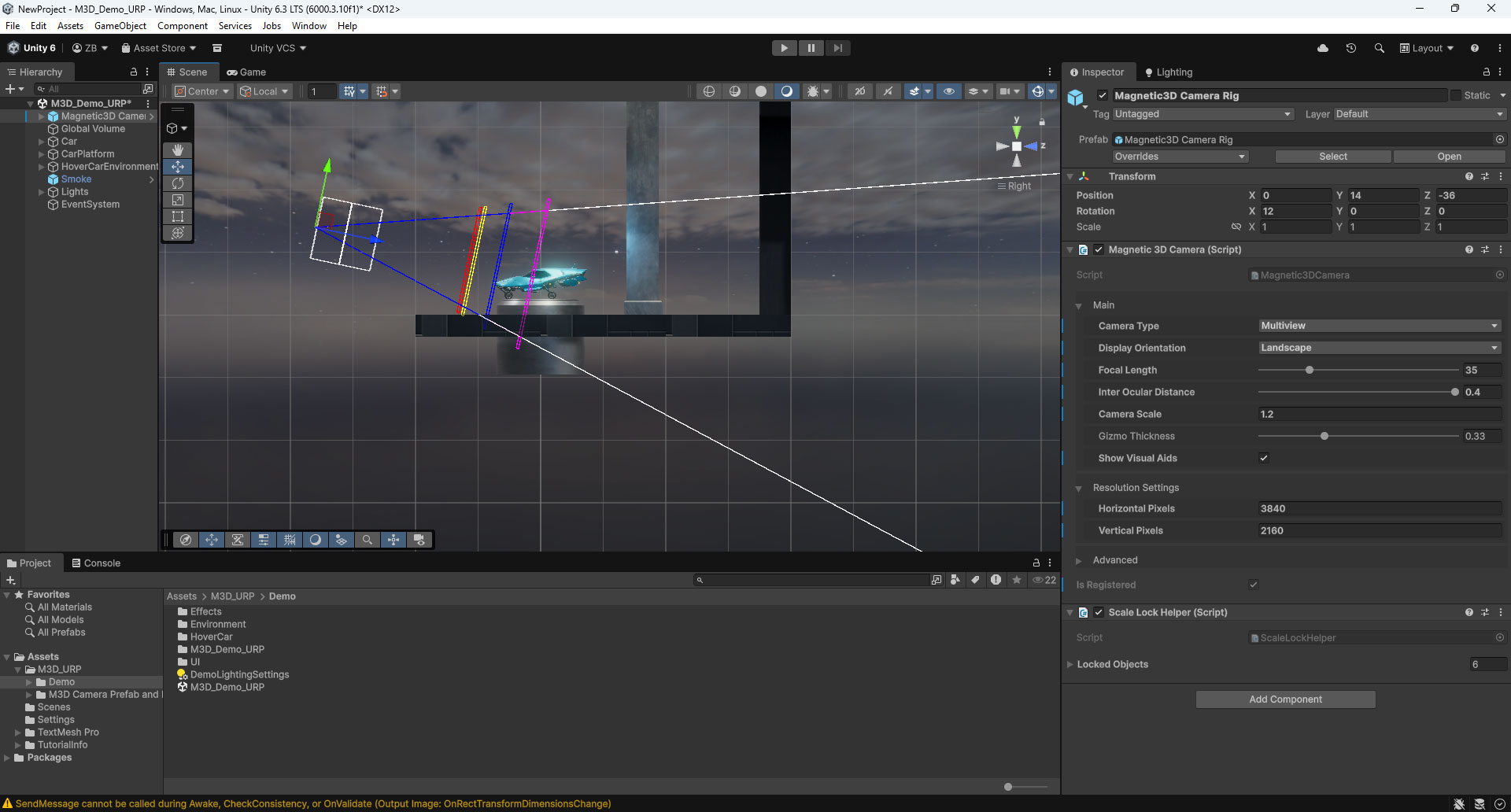
5. Interocular Distance
Changes the distance between each of the cameras in the rig. This will affect how near or far objects may be to the camera rig. The Visual Guides will adjust accordingly to show where to place objects in your scene.
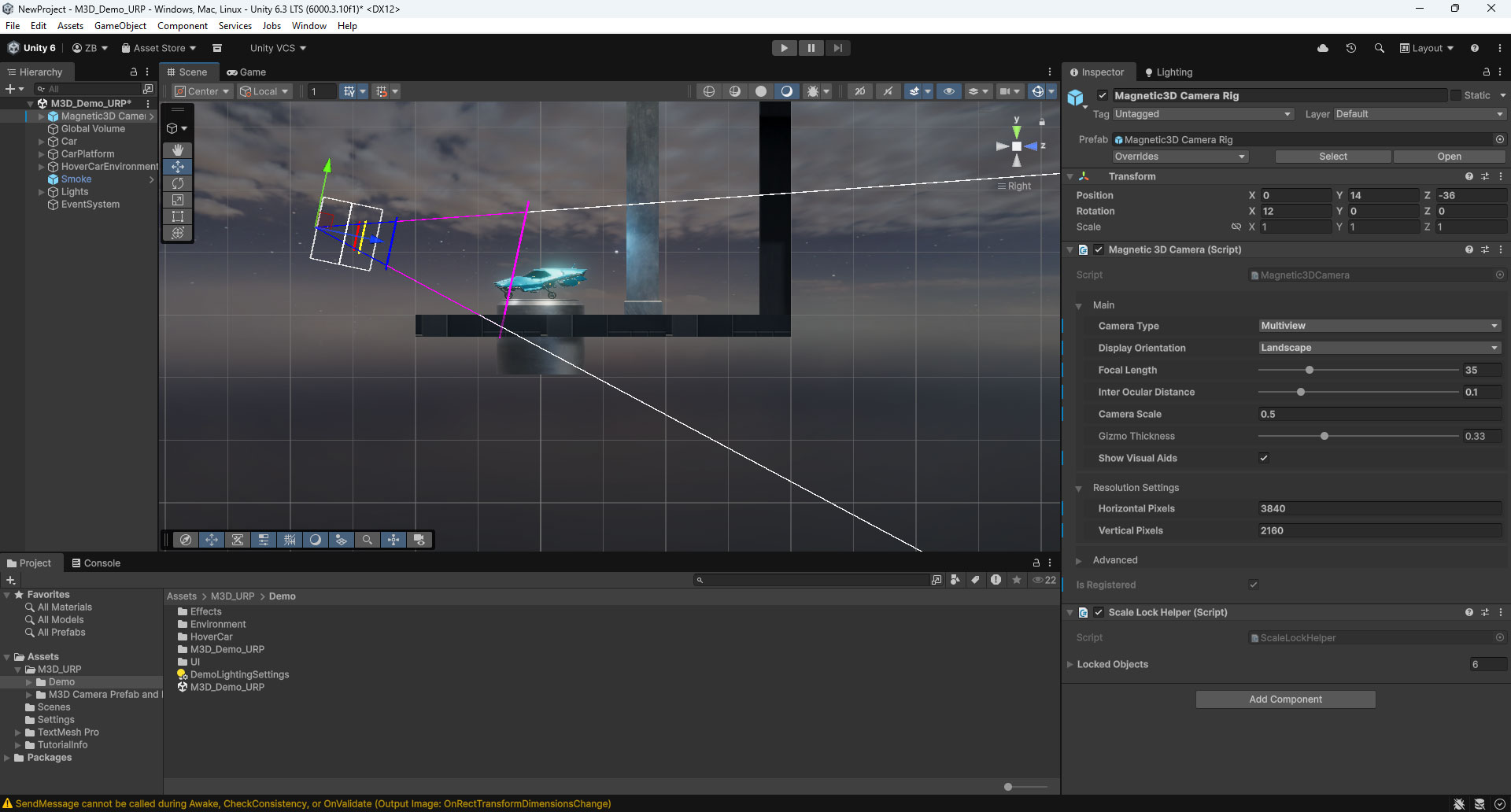
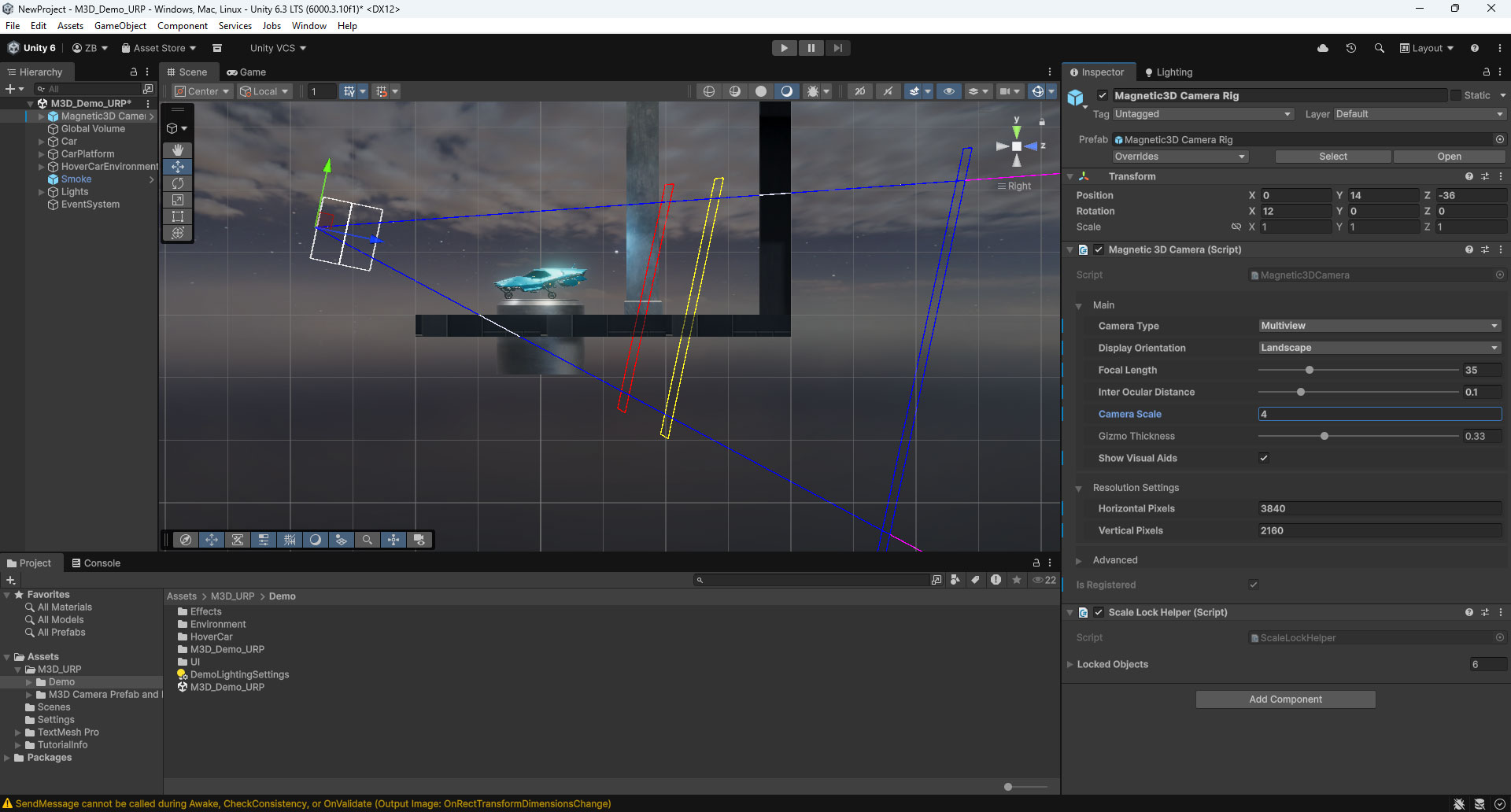
6. Camera Scale
Changes the overall scale of the camera rig, allowing the camera to be closer or further from objects in the scene. The Visual Guides will adjust accordingly.
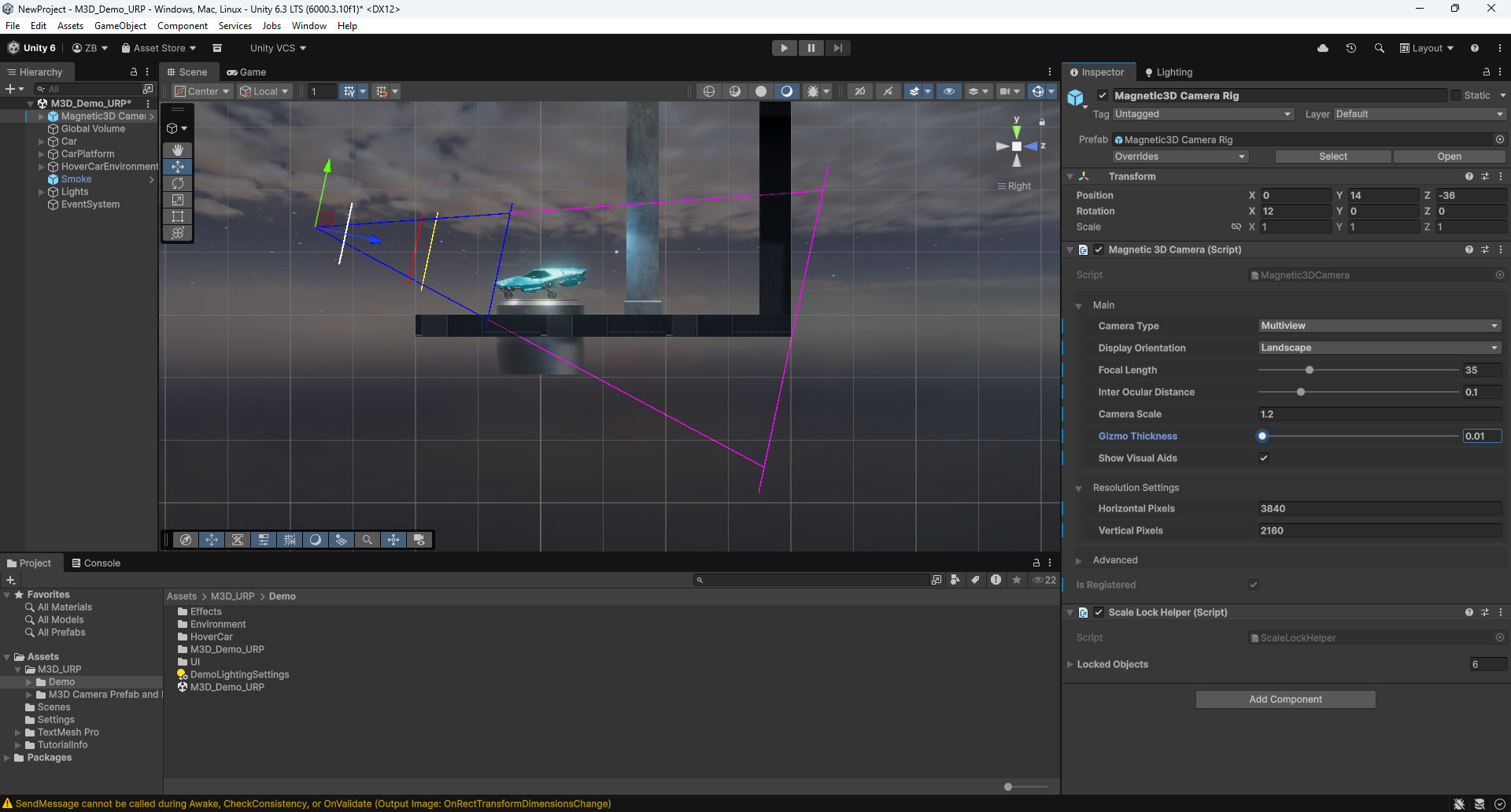
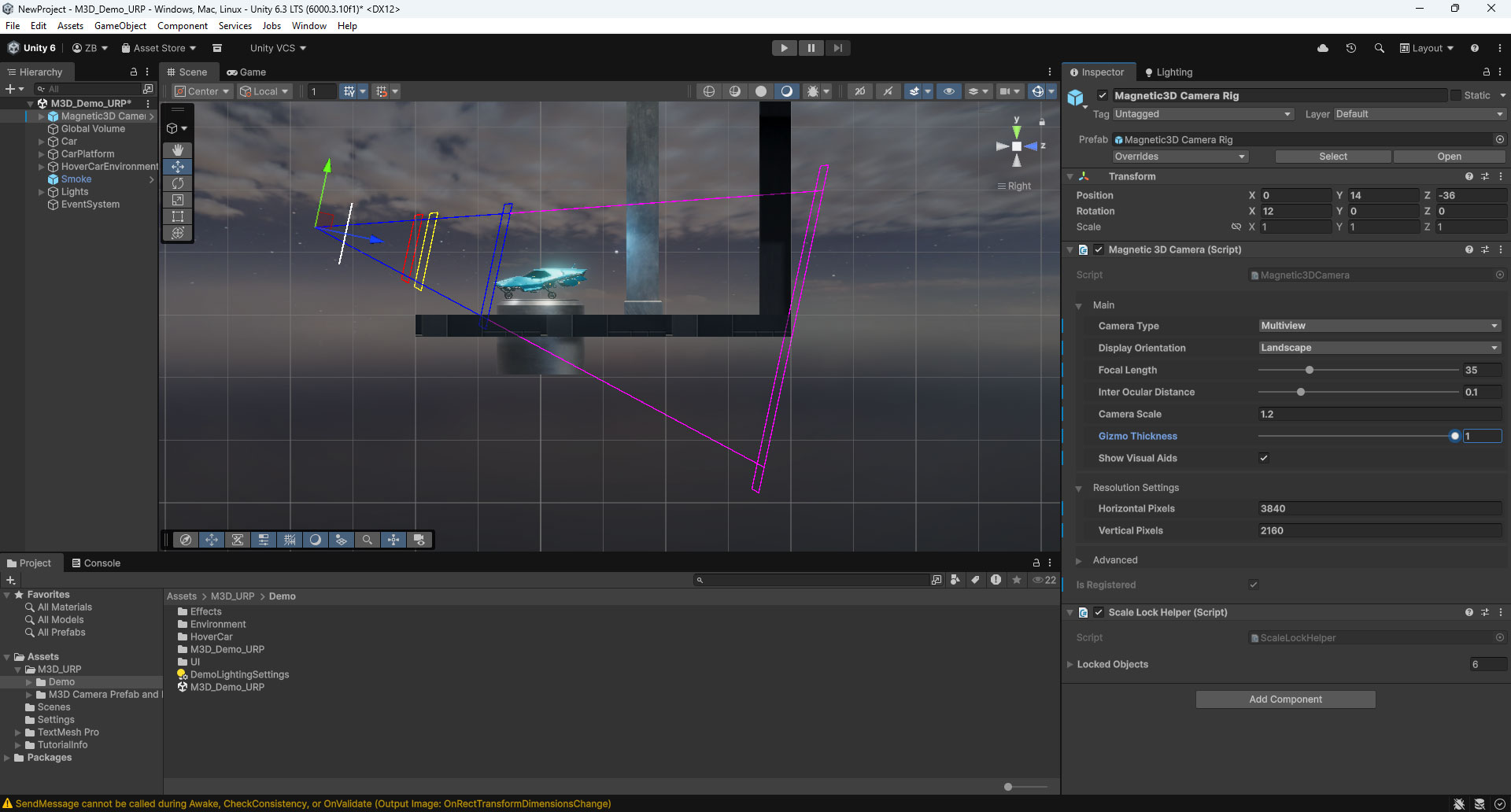
7. Gizmo Thickness
Changes the thickness of the Visual Guides. Has no effect on the 3D positioning of objects. Only useful if the Visual Guides are hard to see for some users.
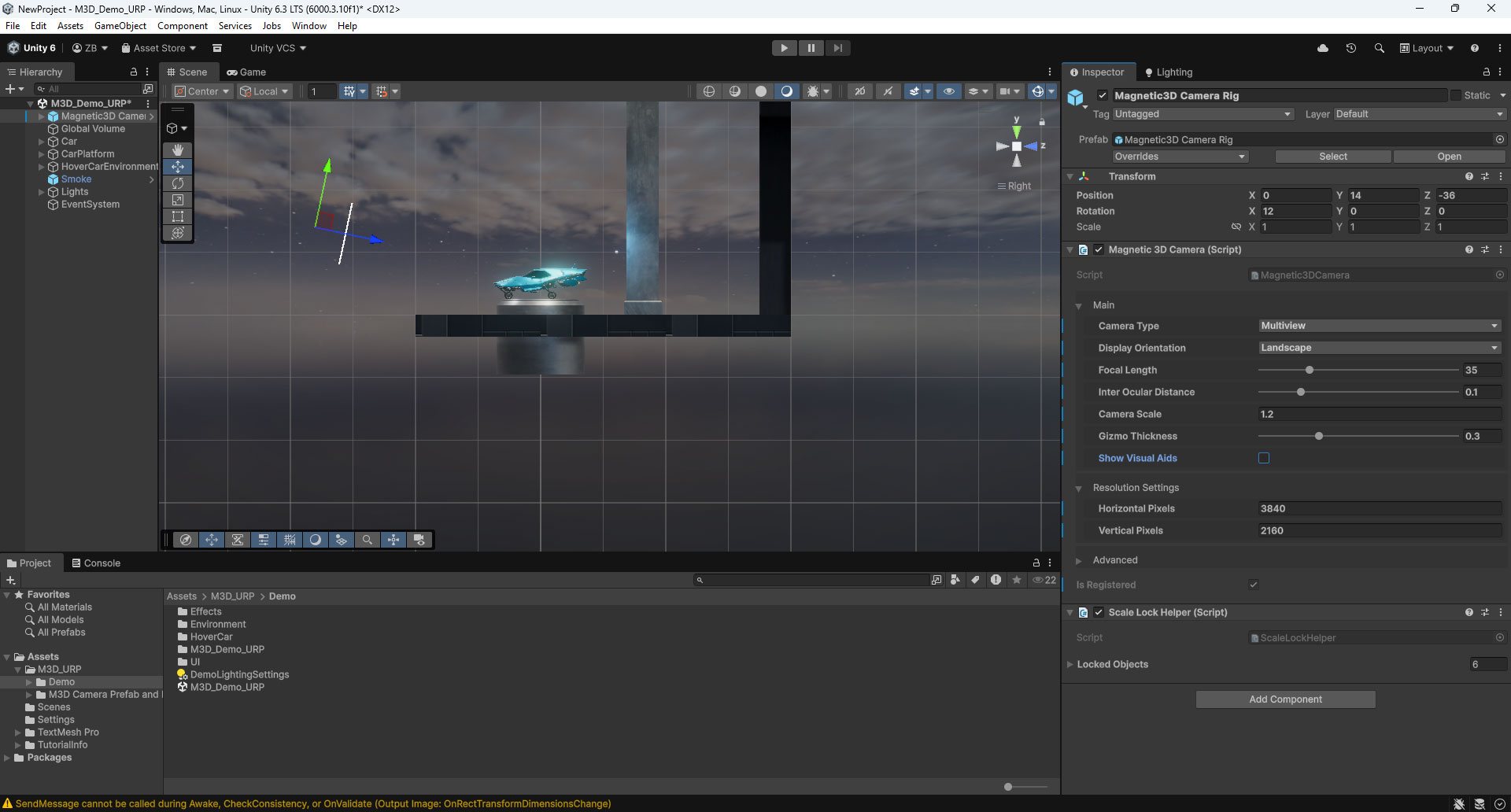
8. Show Visual Aids
Toggles the Visual Guides on or off. In general, keep them toggled on to avoid any issues with placement of objects.
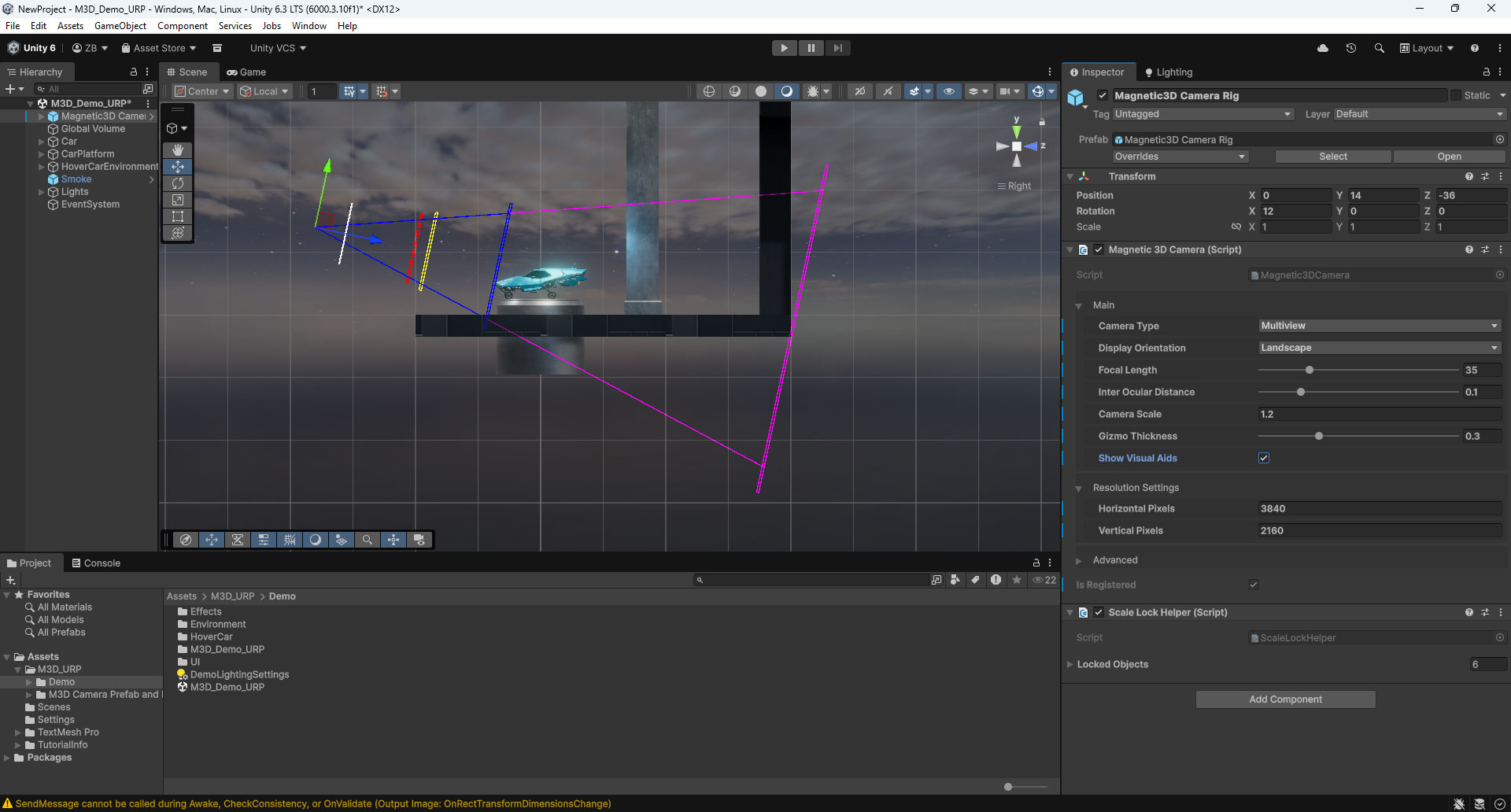
9. Resolution Settings
Keep these settings at default values (3840 x 2160).
