Hypervue for unity
documentation & guide
post processing
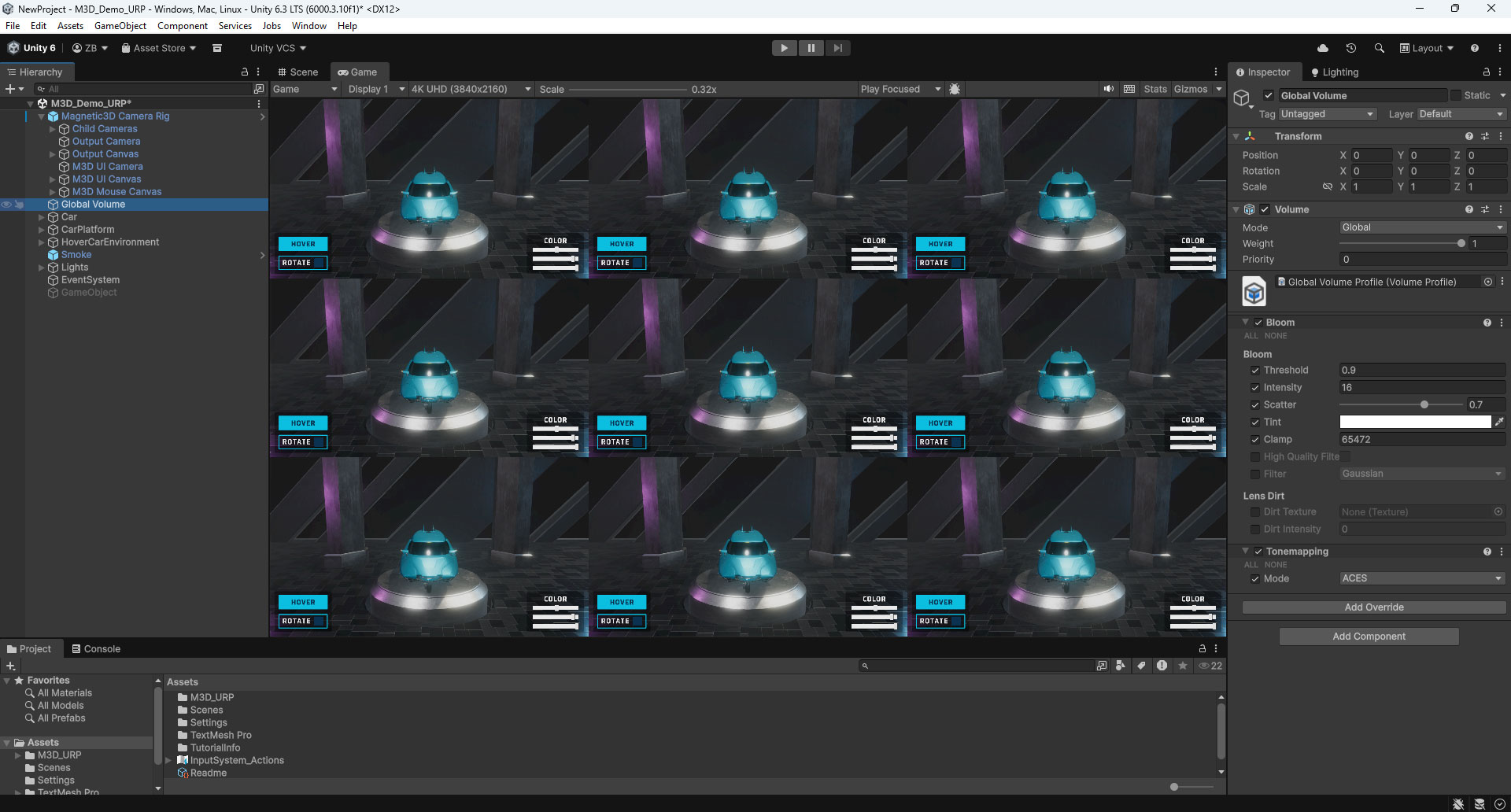
1. Create or Add Post Processing Volume
If you do not have one already in your scene, create a Volume object to hold your Post Processing effects.
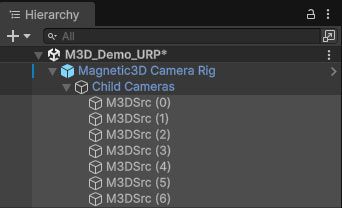
2. Child Cameras Object
To enable Post Processing effects on the Magnetic3D Camera Rig, expand the object and expand the Child Cameras object under it.
3. Enable Post Processing
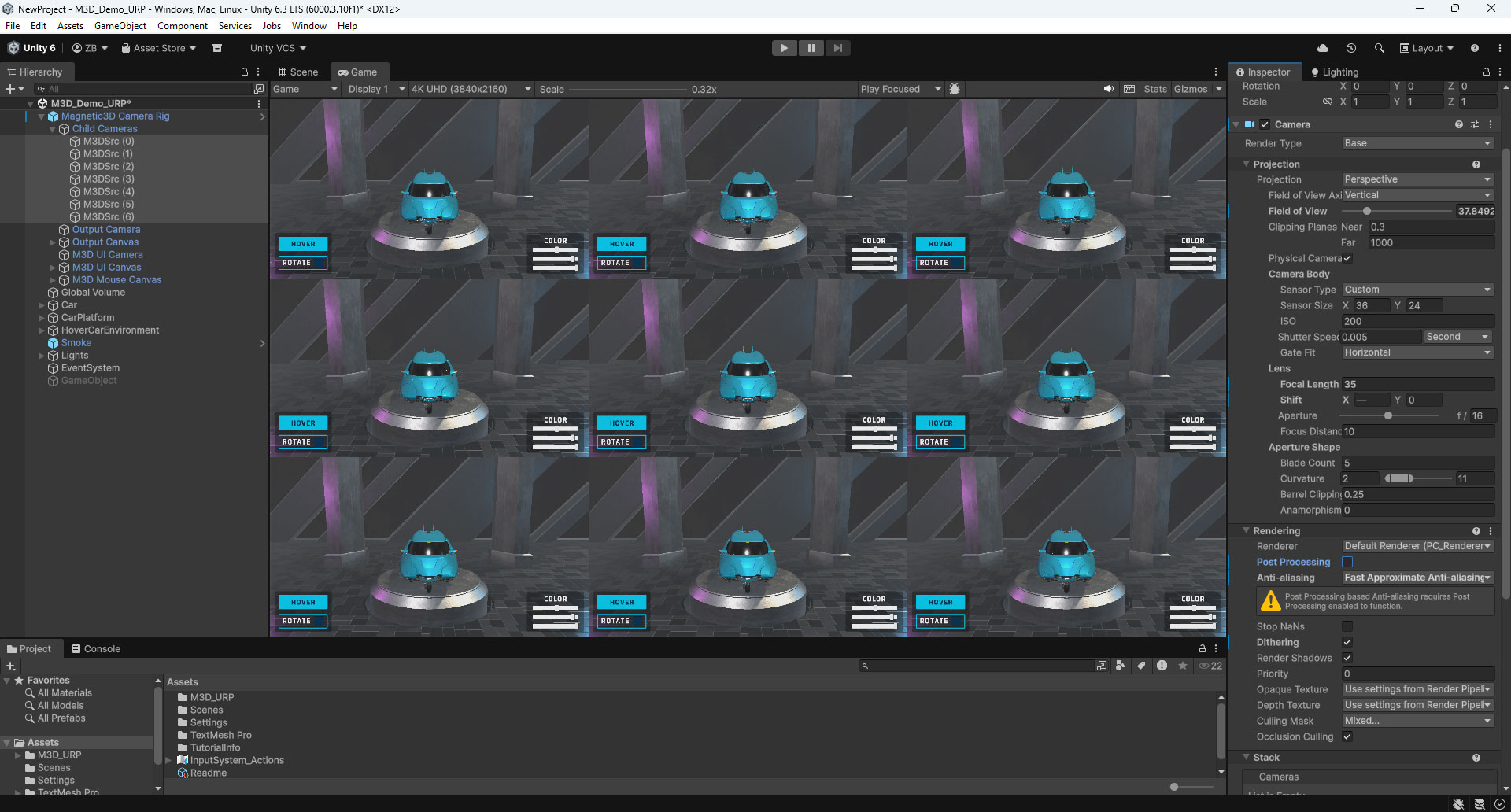
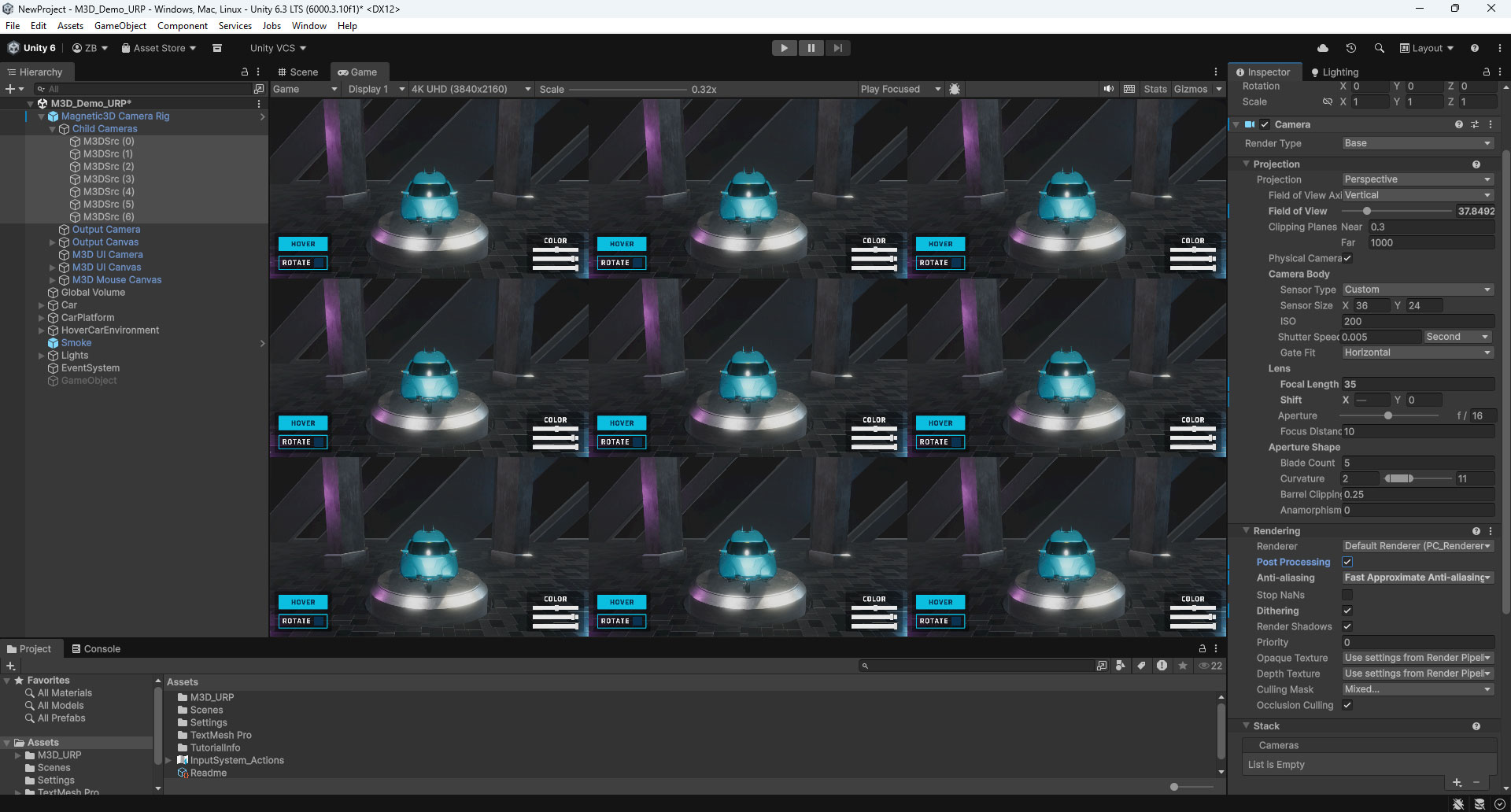
Select all children under the Child Cameras object and find the Post Processing checkbox in the Rendering component. Enable it to enable effects on all views. We also recommend enabling Anti-Aliasing (FAA) andDithering here.