hypervue for Blender
documentation & guide
installation & LICENSE
1. Open Blender Project
Open an existing Blender project, or open Blender for a new project.
2. Open Preferences
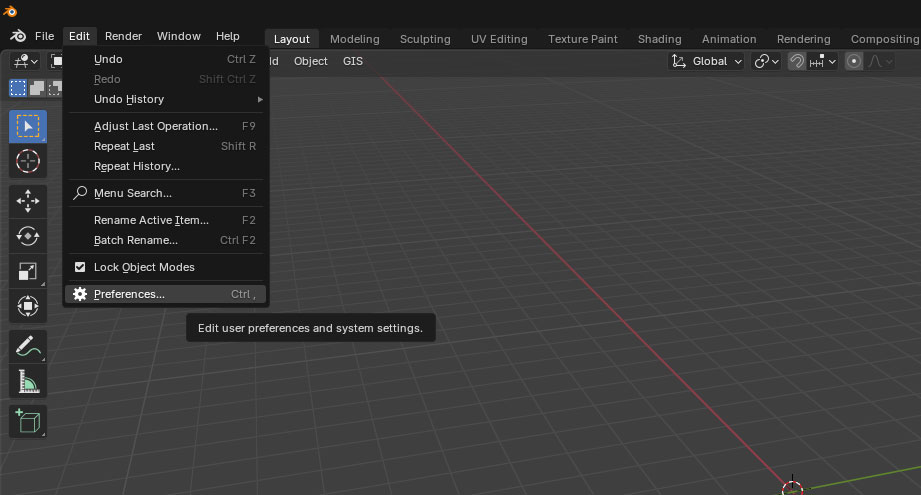
Go to Edit -> Preferences to open the Preferences window.
3. Install Magnetic 3D Add-On
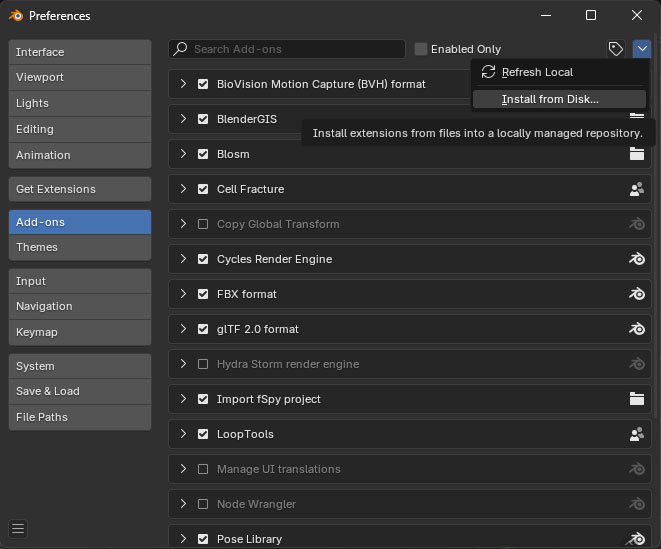
Click on the Add-ons section in the left panel, and then click the Arrow icon in the top right corner of the Add-ons menu, and choose Install from Disk...
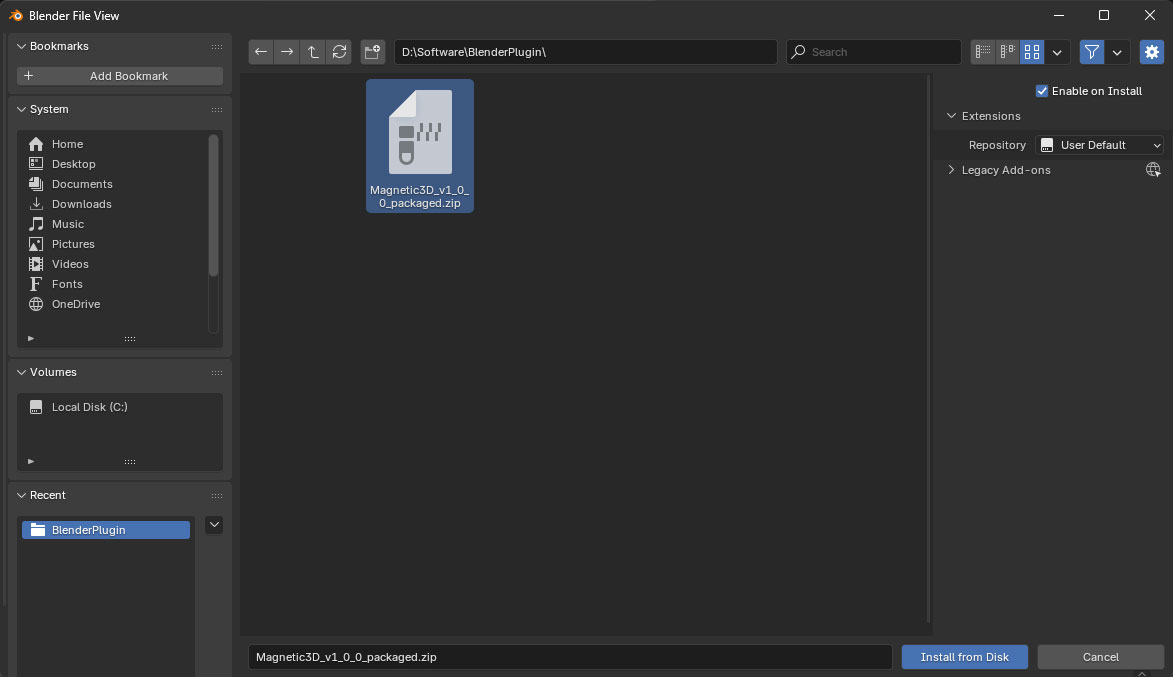
4. Find Installation Zip File
Locate the Magnetic 3D zip file that was downloaded from your license key email. Once located, click Install from Disk.
5. Enter License Key
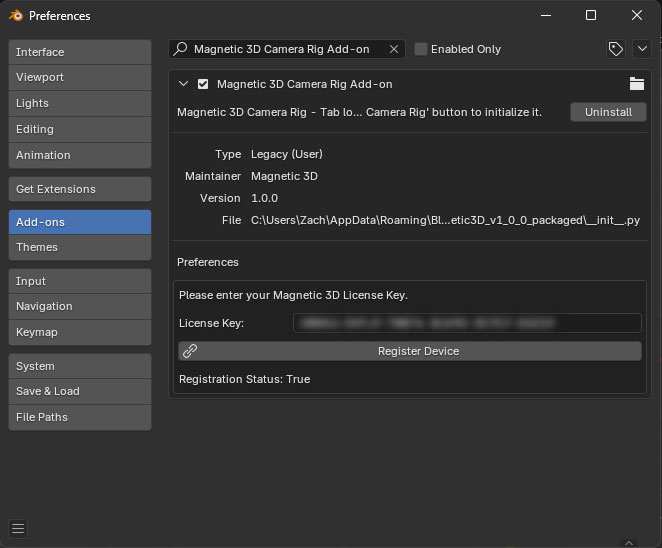
Once installed, expand the Add-on with the small arrow on the left side to reveal the License Key area. Enter your license key here and click Register Device.
6. Finish
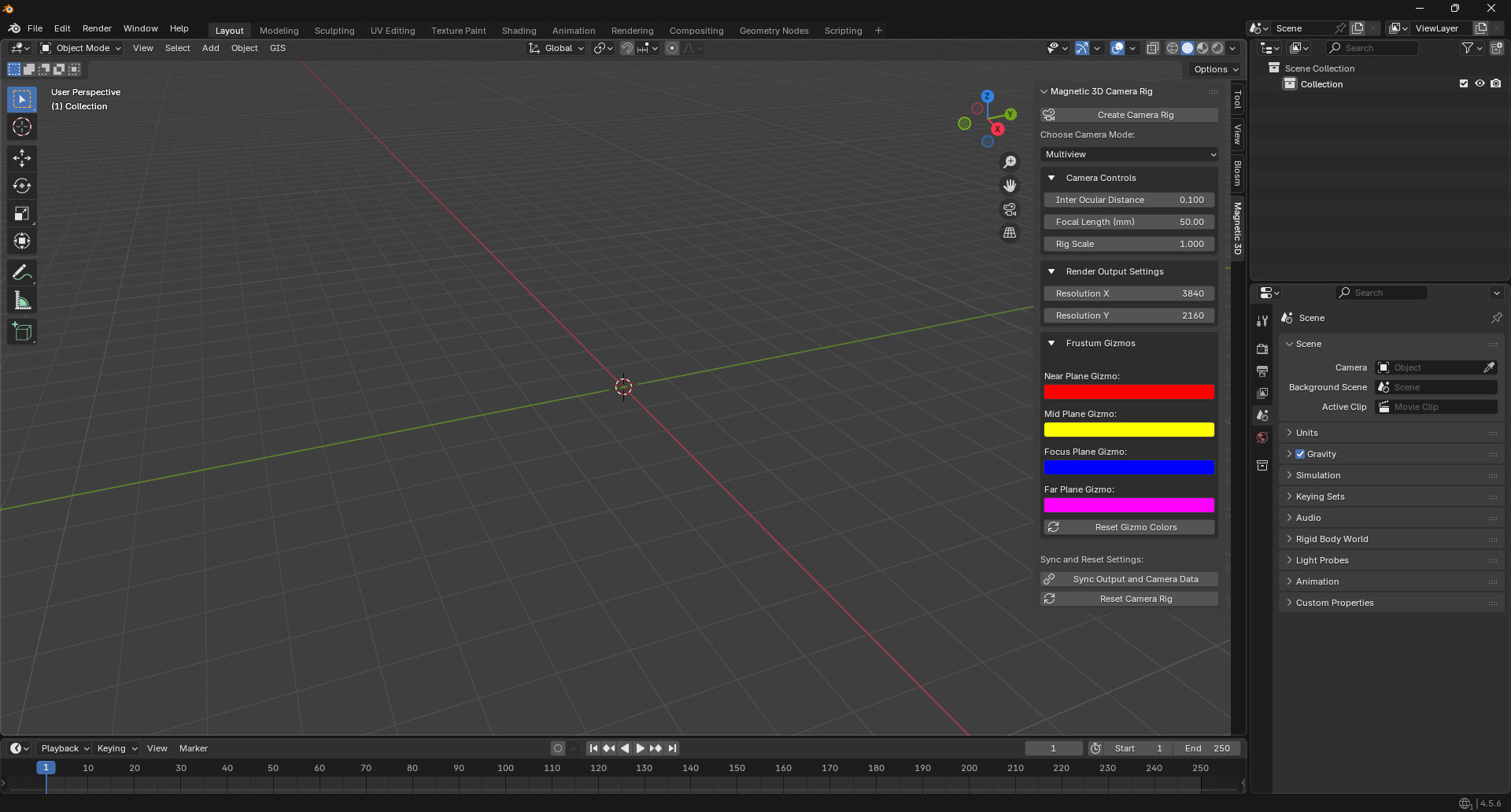
You should now see a Magnetic 3D tab in the sidebar on the right side of the 3D viewport. (Press the N key if you do not see it)